What Is an AI Coloring Book Creator App?
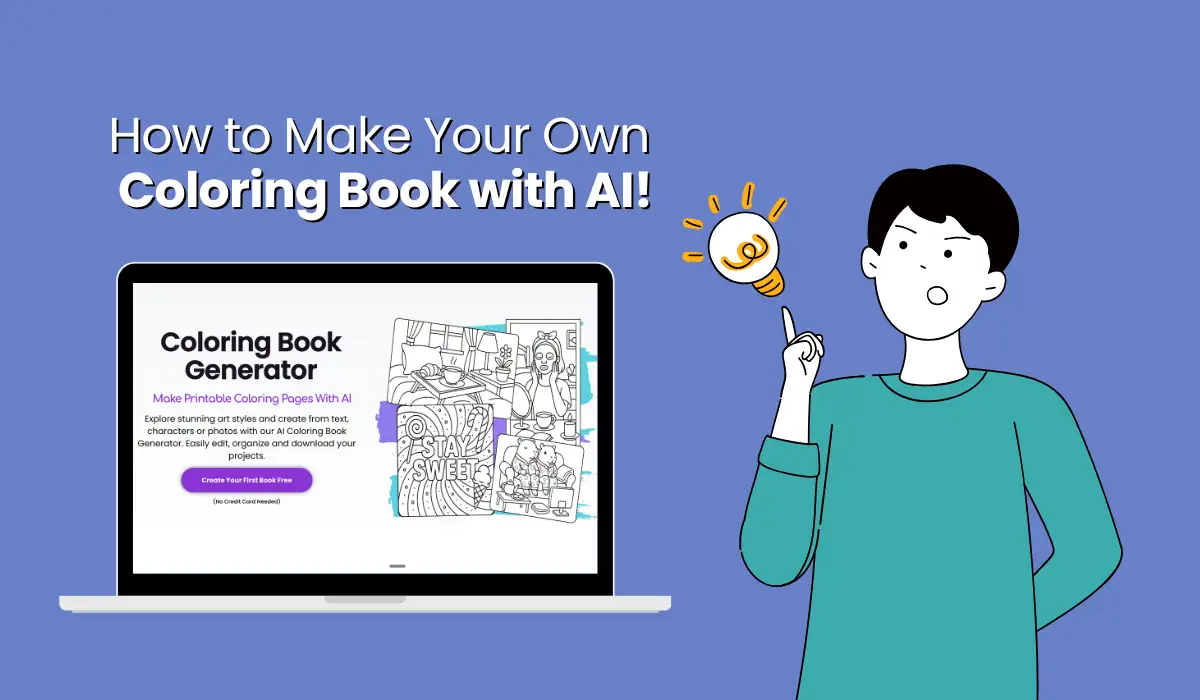
An AI coloring book generator app is a digital platform that uses artificial intelligence to generate coloring pages from your prompts, ideas, or even your photos. These tools dramatically speed up the coloring book creation process, letting anyone produce unique books for adults or children, both for print and digital formats.
Colorin.ai is the all in one AI coloring book generator, combining advanced AI image generation with user friendly editing and book organization features, making coloring book creation simple, efficient, and fun.
Step-by-Step: How to Make a Coloring Book with Colorin AI
1. Setting Up Your Account
Begin by registering for a free account at Colorin AI. The quick signup process gives you immediate access to all the core features of the coloring book generator app.
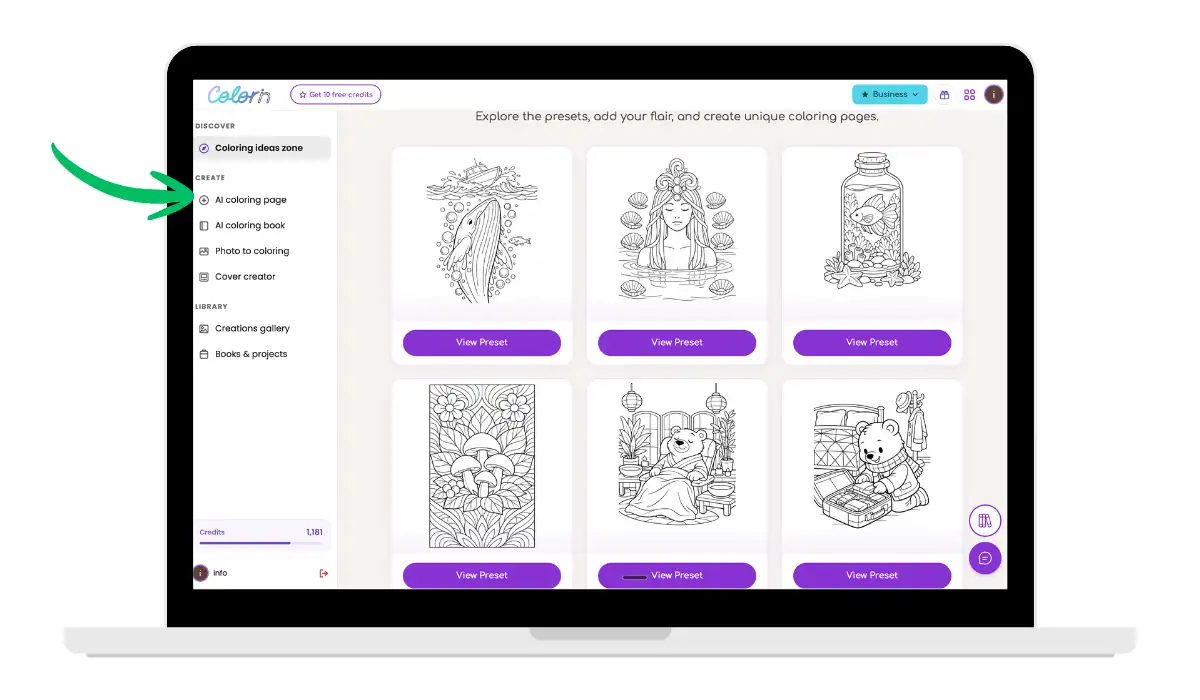
2. Brainstorming and Generating Ideas
Within Colorin AI, open the AI Ideas section. Enter a theme such as «fantasy animals,» «Cozy Cottage,» or «Inspirational Quotes», and the app will instantly generate dozens of creative prompts for your coloring pages, select the ones you like the most and they will be automatically pasted in the Generate Coloring Pages tab. This built-in coloring book idea generator is ideal for overcoming creative blocks and expanding your project.
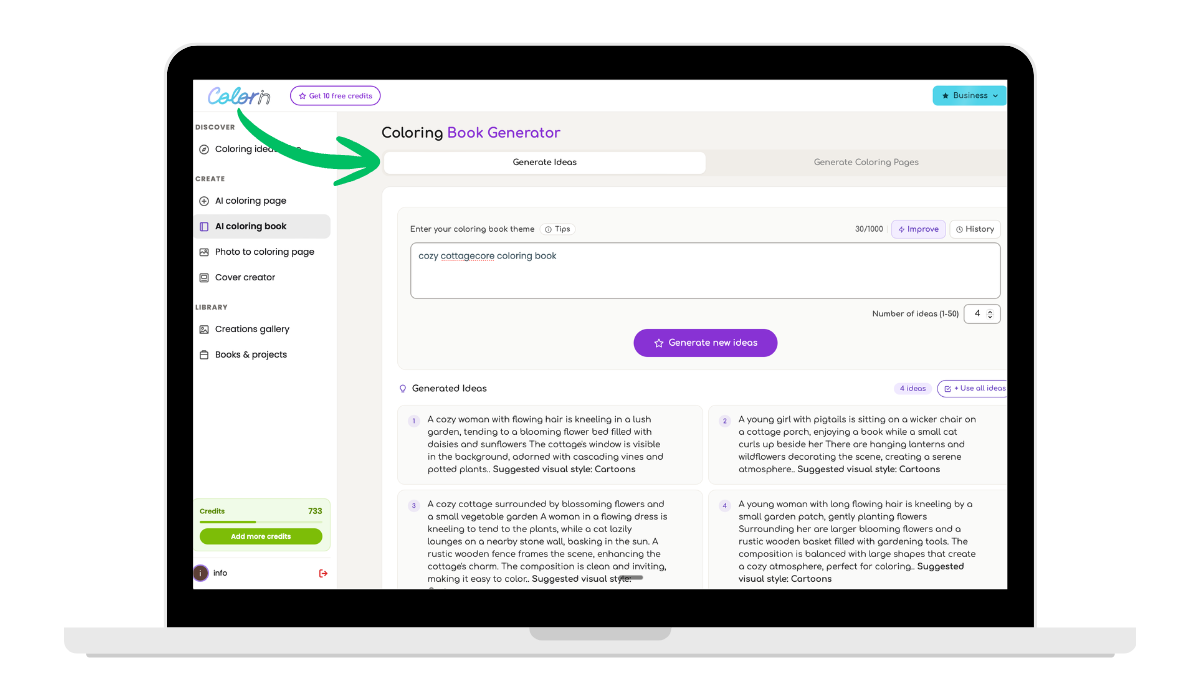
3. Generating Coloring Pages
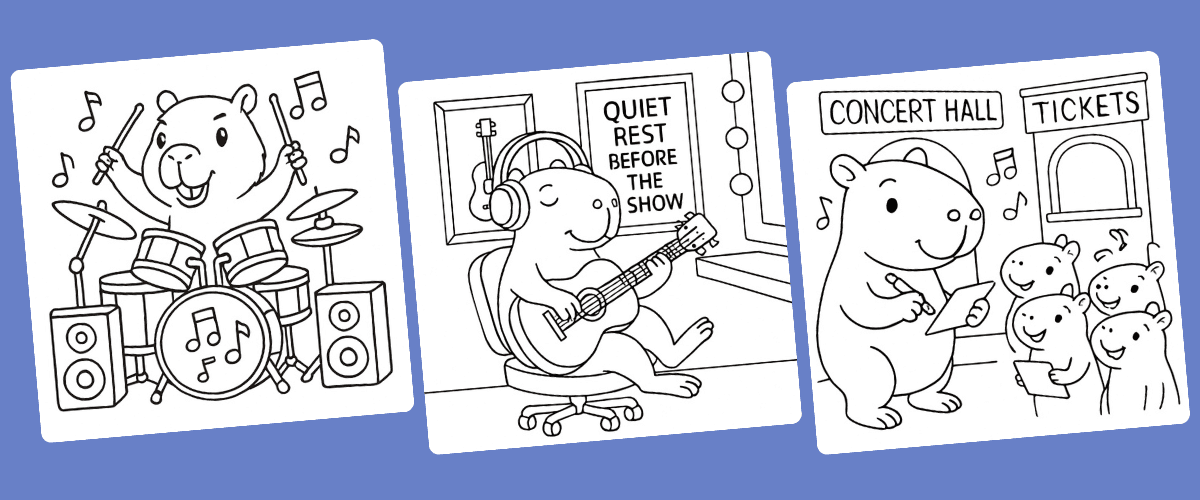
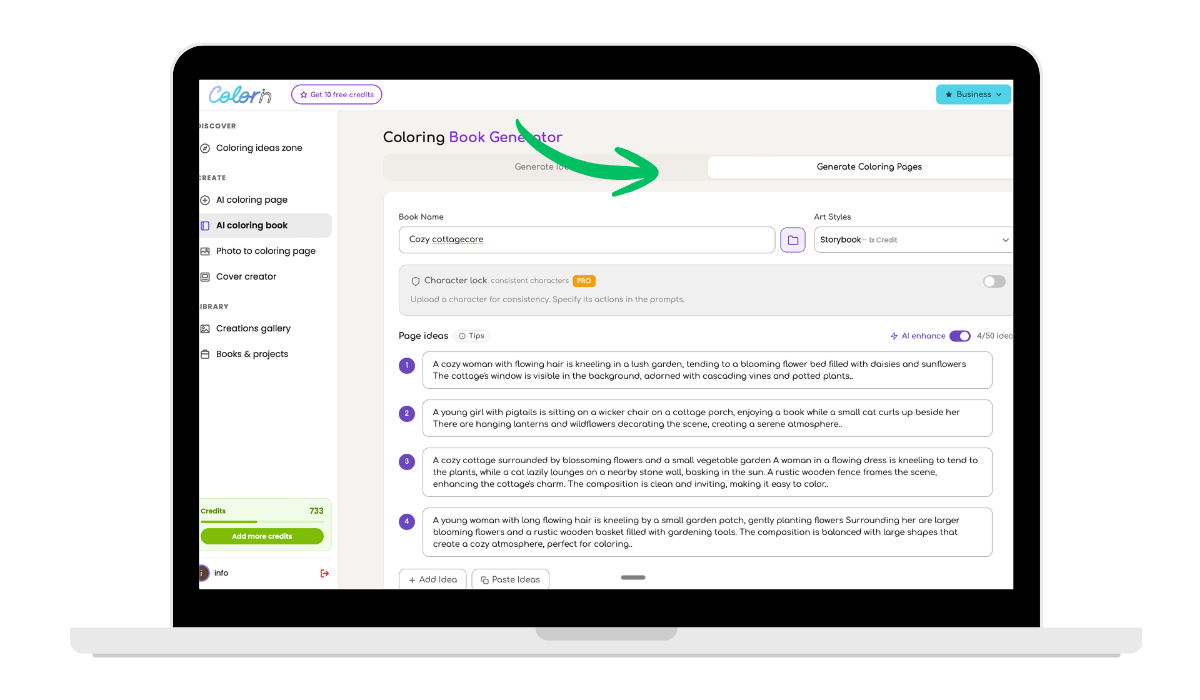
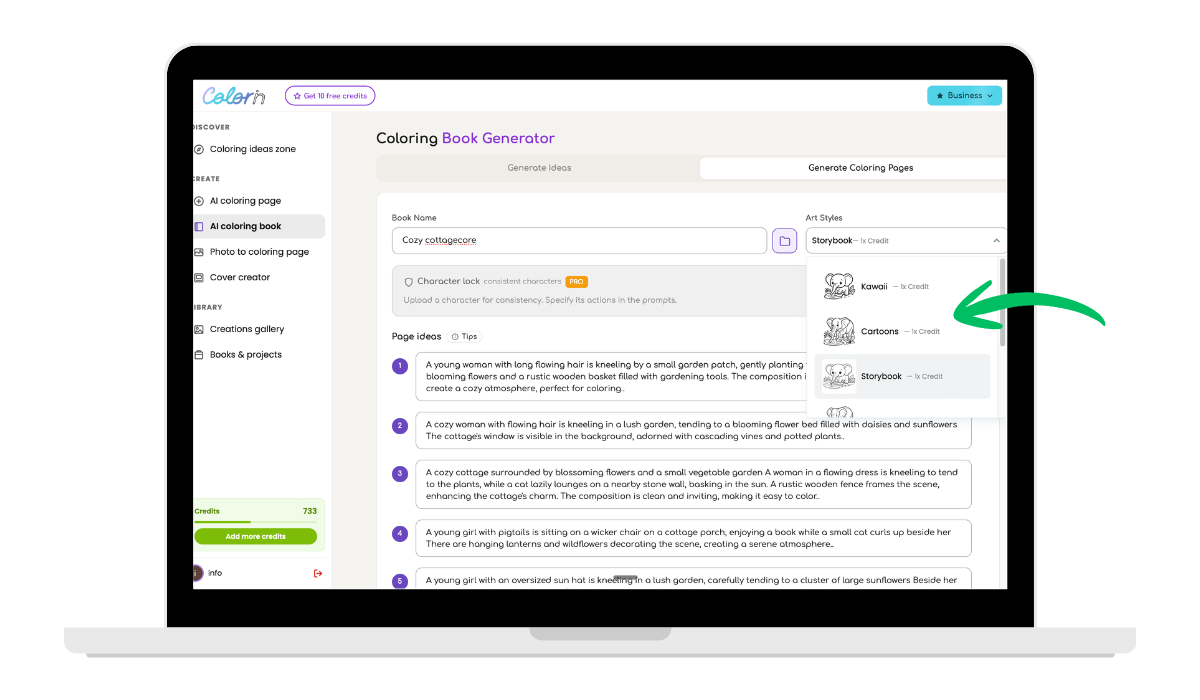
Next, go to the Coloring Page Generator tab to generate your entire book in one batch. Select your preferred art style (Kawaii Minimalist, Zentangle, Storybook, and more), and choose your page size. Click «Generate» and your pages will be ready in seconds. Your book will be automatically organized and waiting for you in Books & Projects.
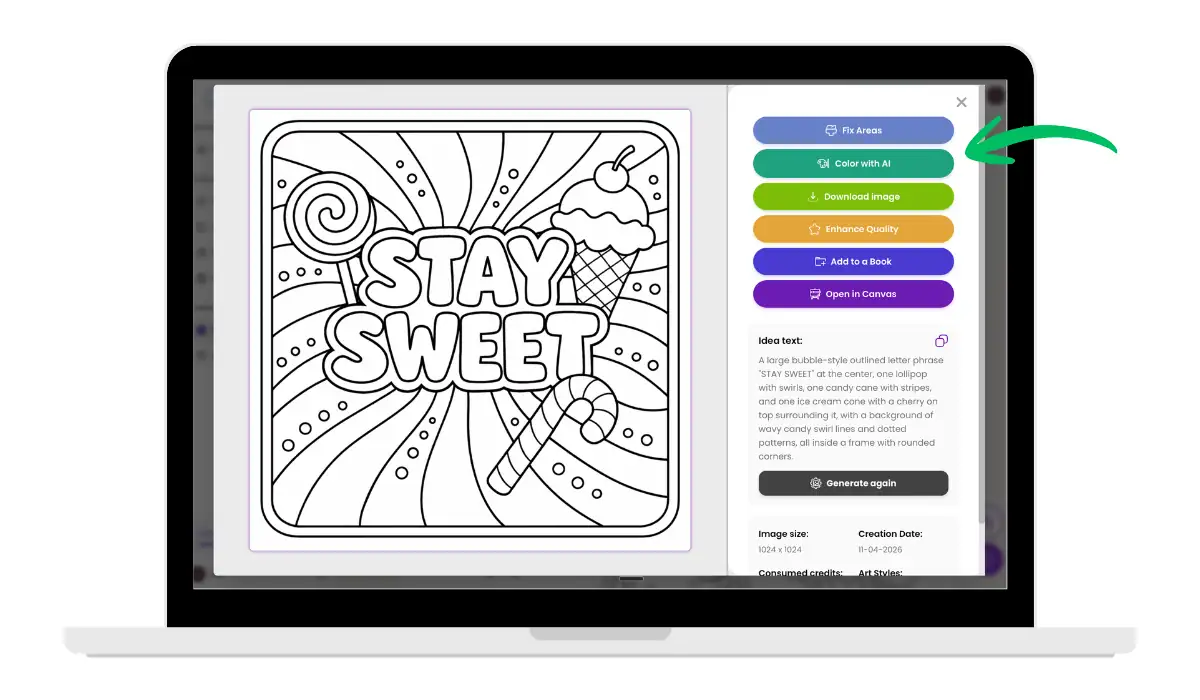
4. Customizing and Editing Your Coloring Pages
Click on any generated image and here you can clean lines, fix or modify any area, enhance image resolution, adjust details, or remove elements. Review each coloring page for clarity, complexity, and overall composition to ensure it matches your target audience.
Checklist:
- Clean, continuous lines
- Appropriate complexity for kids, adults, or seniors
- Balanced, engaging layout
5. Organizing and Building Your Coloring Book
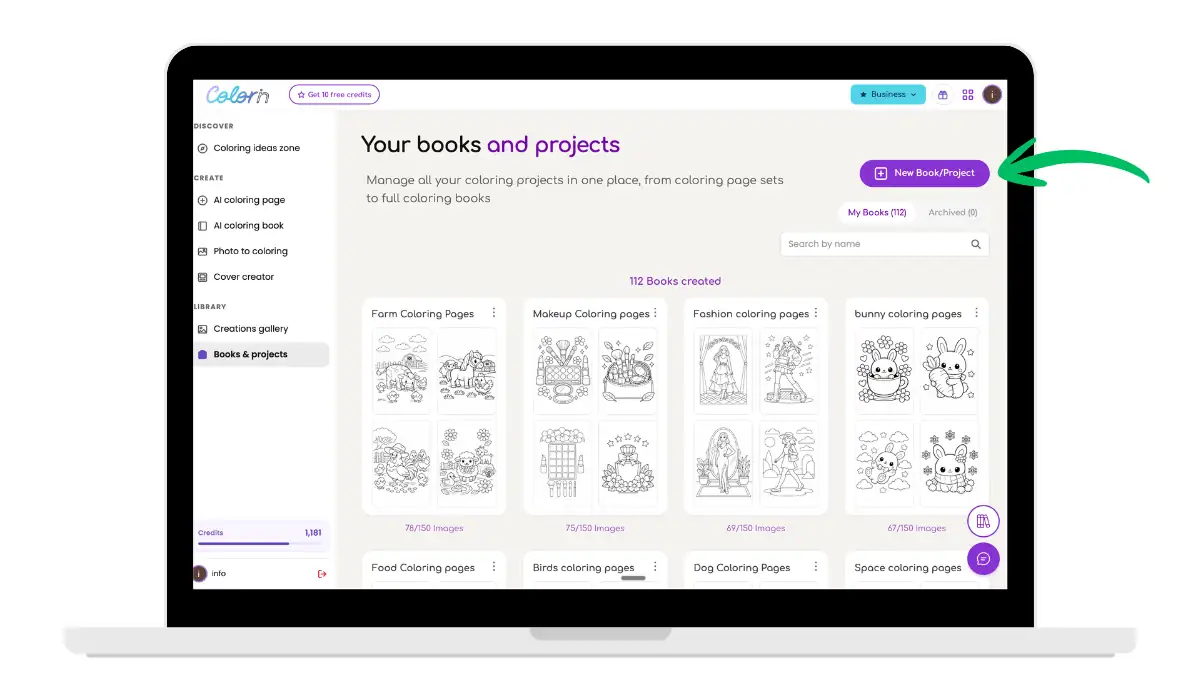
Go to the Books & Projects hub to find your coloring book. If you used the AI Coloring Book Generator, your book is already created and organized automatically. From the Creations Gallery you can also add individual pages you generated separately to any existing project, keeping everything in one place and in the order that works best for your readers.
6. Formatting and Previewing Your Book
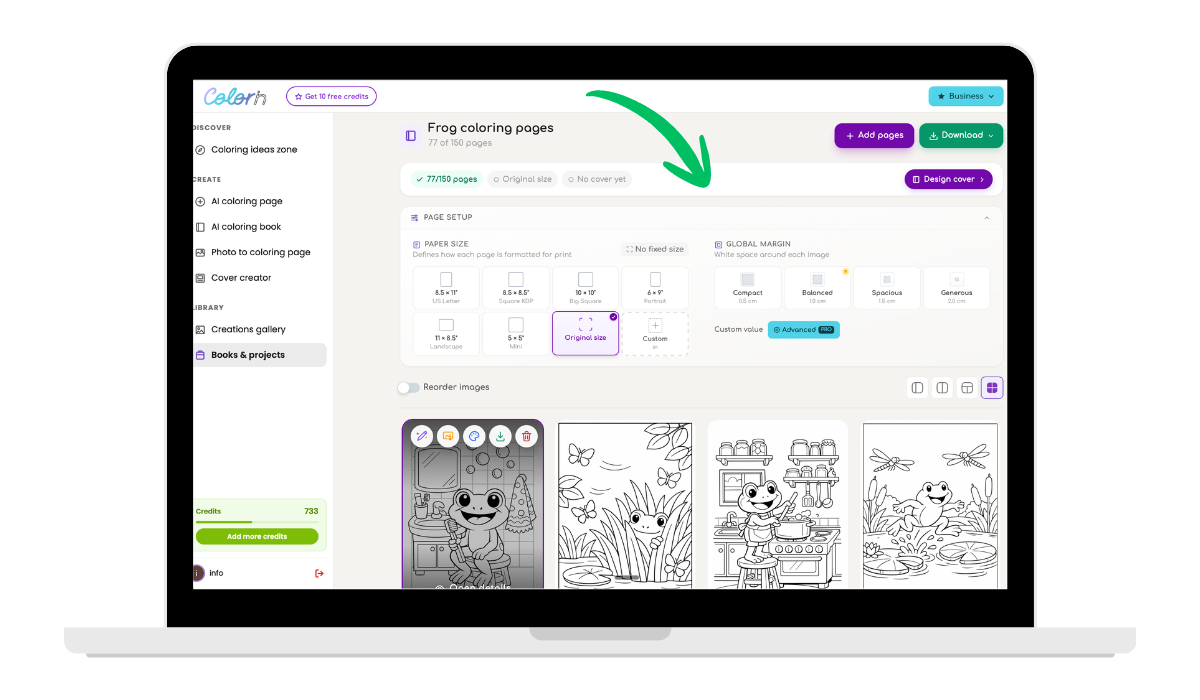
Once your pages are organized, it’s time to format your book for print. In the Books Hub, select your paper size — US Letter, Square KDP, Portrait, and more — adjust your global margins, and preview every page exactly as it will look in the final PDF. This ensures your book prints correctly and meets every marketplace requirement before you download it.
Once your book is ready, click «Download Project» to export a high-quality PDF, perfect for printing or digital publishing on Amazon KDP, Etsy, or any other marketplace. Always test print a sample to confirm that all lines and margins are crisp and clean.
7. Designing Your Book Cover
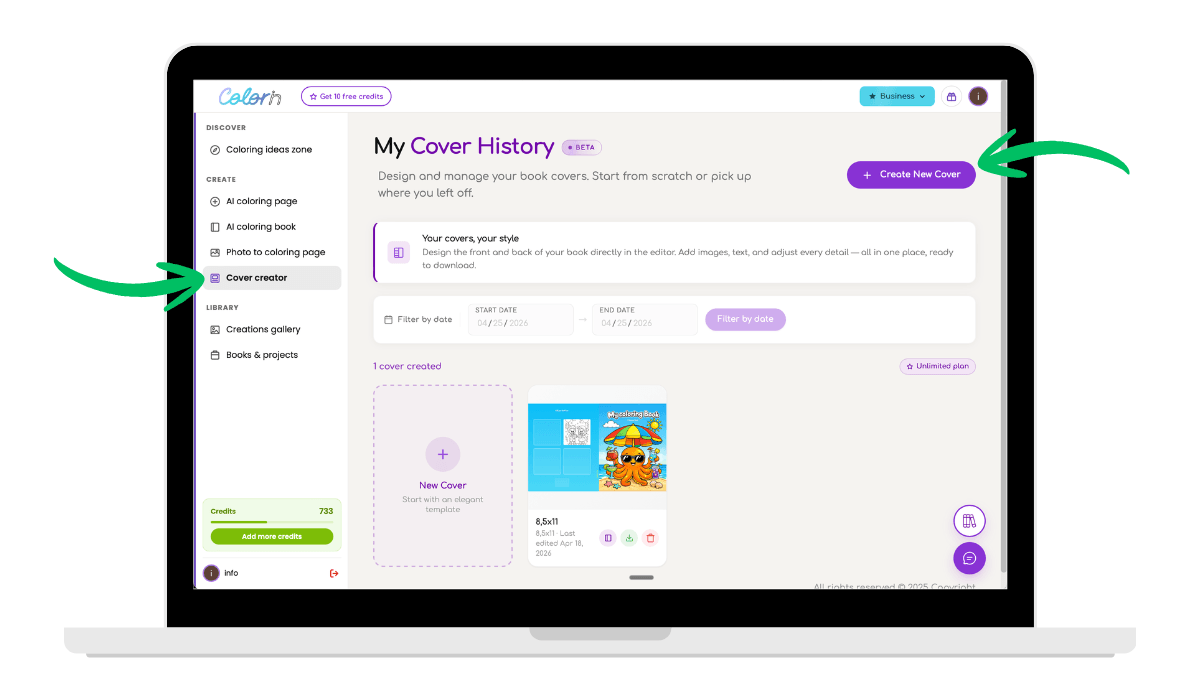
Go to Cover Creator in the left sidebar and click «Create New Cover» to get started.
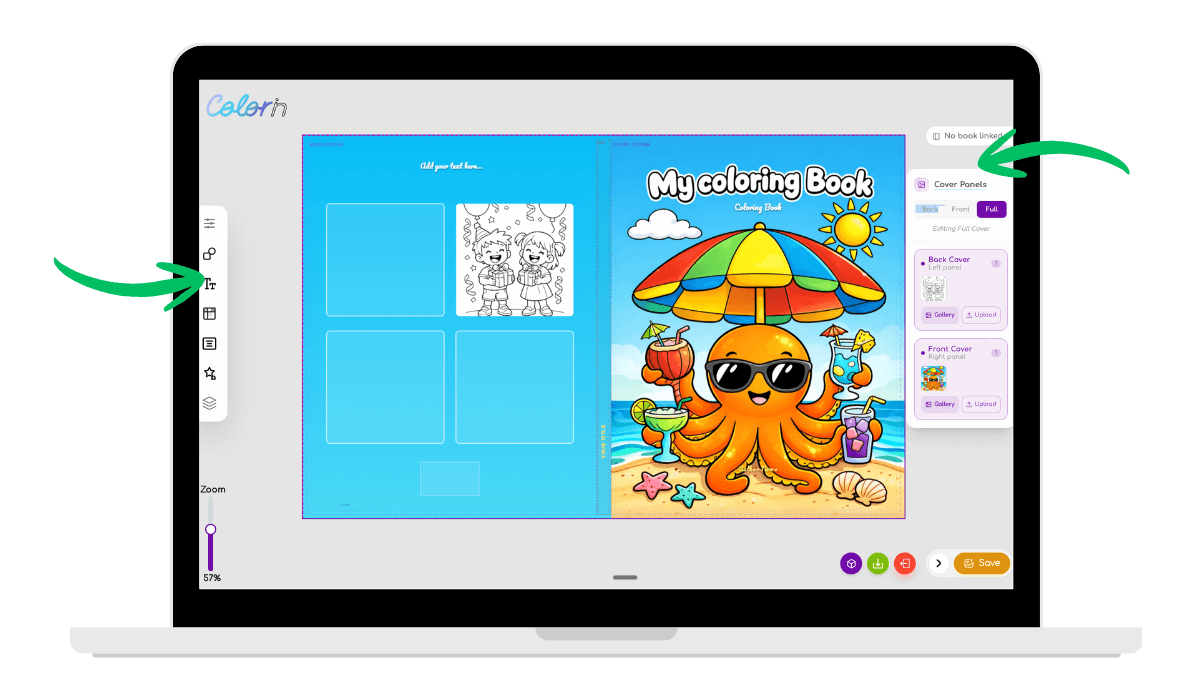
Select a template and start designing your front and back cover in one place. For the front cover, choose one of your generated coloring pages as the base image. The app will turn it into a fully colored, print-ready cover. Add your book title and it will be generated automatically.
For the back cover, add images from your book and any text you want to include, such as your author name or a short description. Once the design is ready, pick a background color that complements your front cover and download it separately to upload alongside your book interior on Amazon KDP, Etsy, or your platform of choice.
Optimizing for Adults, Kids & Seniors
Inside Colorin.ai you can pick the right art style and page size for each audience directly from the Coloring Page Generator.
Adults
- Popular: zentangle, intricate patterns, nature, motivational quotes
- High complexity and detail
- Standard size: 8” x 10” or 8.5” x 11”
Kids
- Simple shapes, bold lines, animals, cartoons, easy-to-color images
- Standard size: 8.5” x 11”
Seniors
- Large, clear illustrations, minimalist, flowers, simple landscapes, high contrast
- Easy-to-see lines and uncluttered layouts
Publishing & Selling Your Coloring Book Online
How to Sell on Amazon, Etsy & More
Once your book is ready, you have several ways to start selling. Amazon KDP works best for print-on-demand — your book reaches millions of buyers worldwide with no upfront inventory costs. Etsy is ideal for digital downloads, where buyers print the pages at home. You can also print the books yourself and sell them physically, or sell directly through your own website for full control over your pricing and customer relationship.
Each platform has different size and margin requirements, so make sure to set those up in Colorin AI before downloading your PDF. For a complete breakdown of platforms and pricing strategies, check out our guides on how to sell coloring books online and how to monetize coloring books.
Legal Tips: Copyright & Usage Rights
- Images generated with Colorin AI can be used for commercial purposes, including selling on any marketplace.
- Consider copyright registration for extra protection
Common Mistakes to Avoid
Even with the right tools, a few common mistakes can hurt the quality and sales potential of your coloring book. Here are the ones to watch out for before you publish.
- Using overly complex prompts for children’s coloring books. Kids need simple shapes, bold lines, and clear subjects they can easily recognize and color. Detailed prompts often produce intricate designs that frustrate young colorists and lead to poor reviews from parents.
- Not test printing before publishing. What looks great on screen can print very differently, with lines that are too thin, margins that get cut off, or pages that bleed into the spine. Always order a proof copy or print a sample at home before uploading your final files to KDP or Etsy.
- Mixing different art styles in a single book. Combining Kawaii, Zentangle, and Storybook pages in the same book creates a disjointed experience that confuses buyers and lowers perceived quality. Pick one consistent art style per book and use it across every page to create a cohesive product.
- Ignoring the target audience’s needs. A coloring book designed for seniors needs larger, simpler designs with high contrast, while adult coloring enthusiasts often want intricate detail and complexity. Define your audience first, then choose your themes, complexity level, and page size accordingly.
- Disorganized page order or inconsistent themes. Random page sequences or unrelated themes within the same book signal a low-effort product and hurt your reviews. Group similar themes together, build a logical flow, and make sure every page reinforces the book’s main concept.
- Skipping the back cover and book description. Many creators focus only on the front cover and forget that the back cover and Amazon description are what convince shoppers to buy. Take the time to design a back cover with sample pages and write a compelling description that highlights who the book is for.
- Pricing too low to compete. Underpricing your coloring book signals low quality to buyers and eats into your royalties. Research what similar books in your niche charge on Amazon KDP and Etsy, and price within that range.
FAQs: AI Coloring Book Creation
- Do I need design or drawing skills?
No, our coloring book generator lets you create and customize coloring pages with prompts and simple editing tools. - What’s the best size for a coloring book?
For adults: 8” x 10” or 8.5” x 11”. For kids: 8.5” x 11”. Always check your publishing platform’s requirements. - Can I make coloring books from my own photos?
Yes, Colorin AI lets you turn personal photos into custom coloring pages.
Conclusion: Start Your AI Coloring Book Journey
Creating coloring books with AI is fast, fun, and opens up endless creative possibilities. Whether you want to make your own coloring book for fun, for gifts, or for profit, you can turn your ideas into a professional-quality book in just a few steps.
Ready to create your first coloring book? Sign up free at Colorin AI and start generating your pages today.