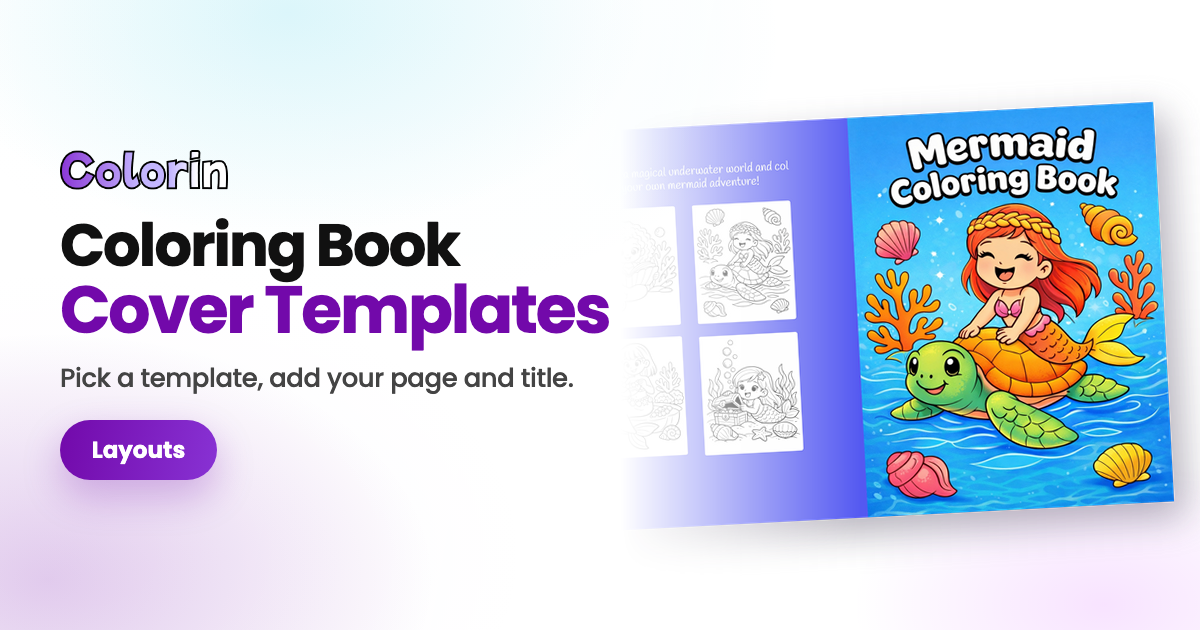
Cover templates in Colorin AI give your coloring book a finished design, front and back. You choose one and add your title and your coloring pages. Then the cover is ready to download for Amazon KDP, Etsy, a personalized book or a gift.
How to Open the Templates
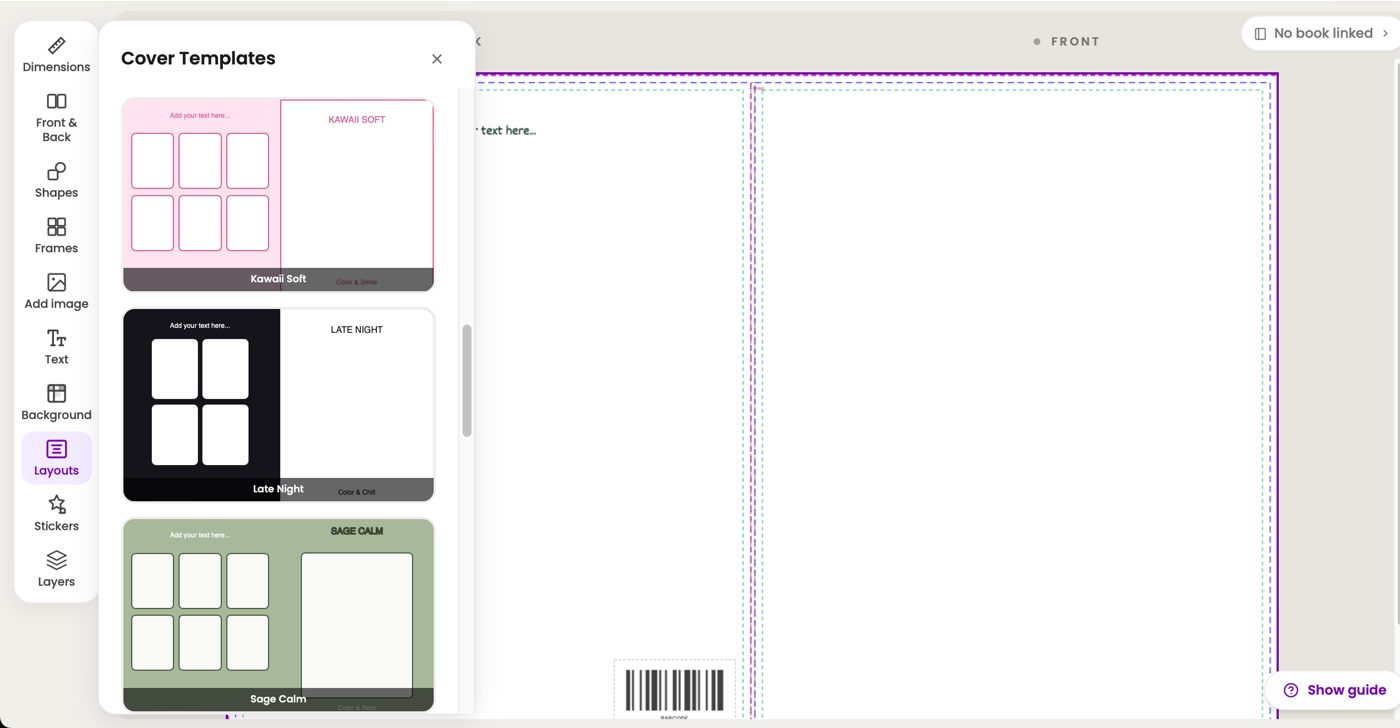
Go to Cover creator in the left menu and create a new cover. In the editor, open Layouts in the side menu, and the Cover Templates panel opens.
Click a template and press Apply. The template changes the texts, the colors and the frames of the cover.
The Kinds of Templates
Every template has a large frame on the front for your coloring page, and frames on the back for sample pages. What changes is where the title goes:
- Title in a box, above your page: Christmas Pine, Circus Red, Cozy Linen and Anatomy Navy.
- Title on the background, above your page: Halloween Night, Ocean Kids, Sage Calm and Psalm Gold.
- Page with a title band: your page fills the front, with a band for the title. Terracotta Evening, Pastel Spring, Kawaii Soft and Late Night.
- Page with no title: your page fills the whole front, and the title goes inside the colored page. Deep Forest, Winter Frost, Mint Kids and Ink Anime.
Pick the one that fits your book. Halloween Night and Christmas Pine suit holidays, and Ocean Kids and Mint Kids suit books for kids. Psalm Gold suits faith books, and Anatomy Navy suits study books. More templates are coming soon.
Templates with a Title
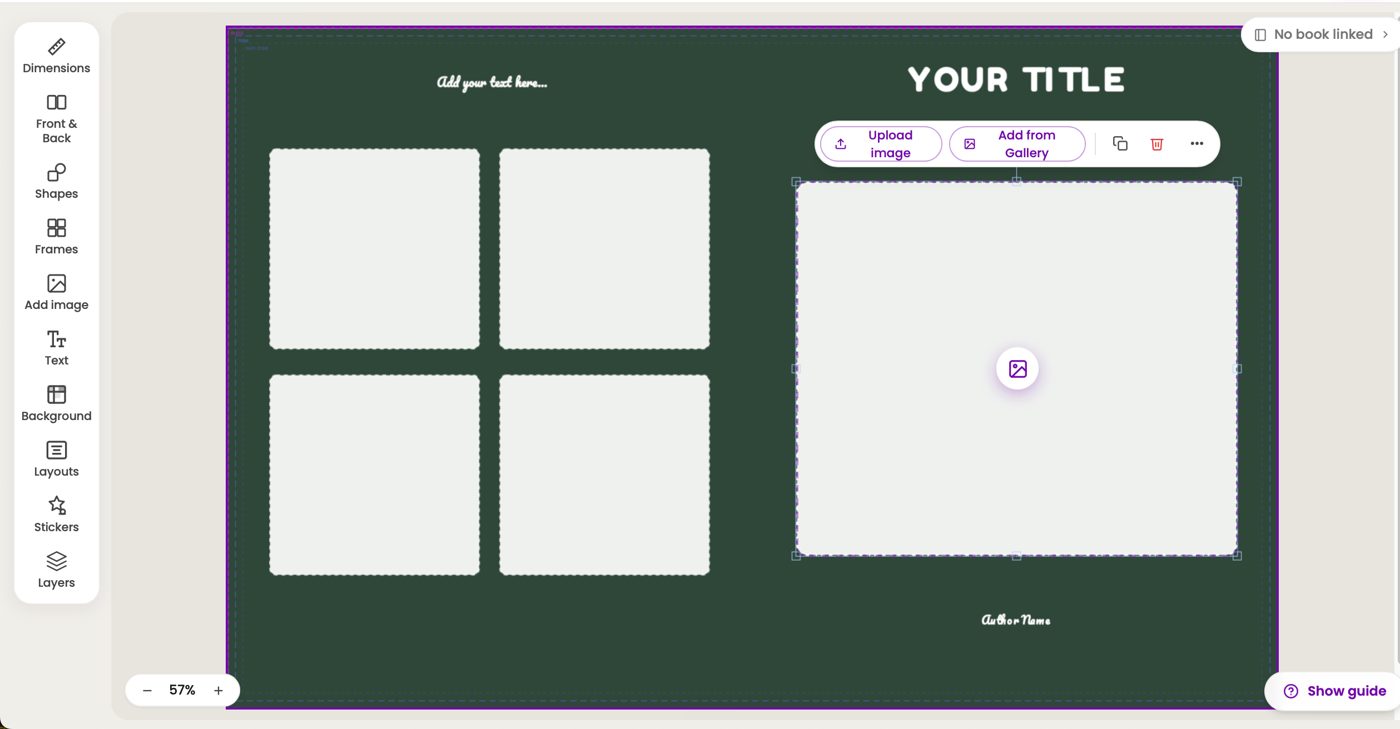
With these templates, you type the title and add your page:
- Double-click the title and type yours. The line at the bottom of the front changes the same way.
- Click the round picture button in the large frame. If the frame has no button, click it and press Add from Gallery.
- Choose your page: one you made in Colorin AI, in Gallery or Books, or one from your computer, in Upload.
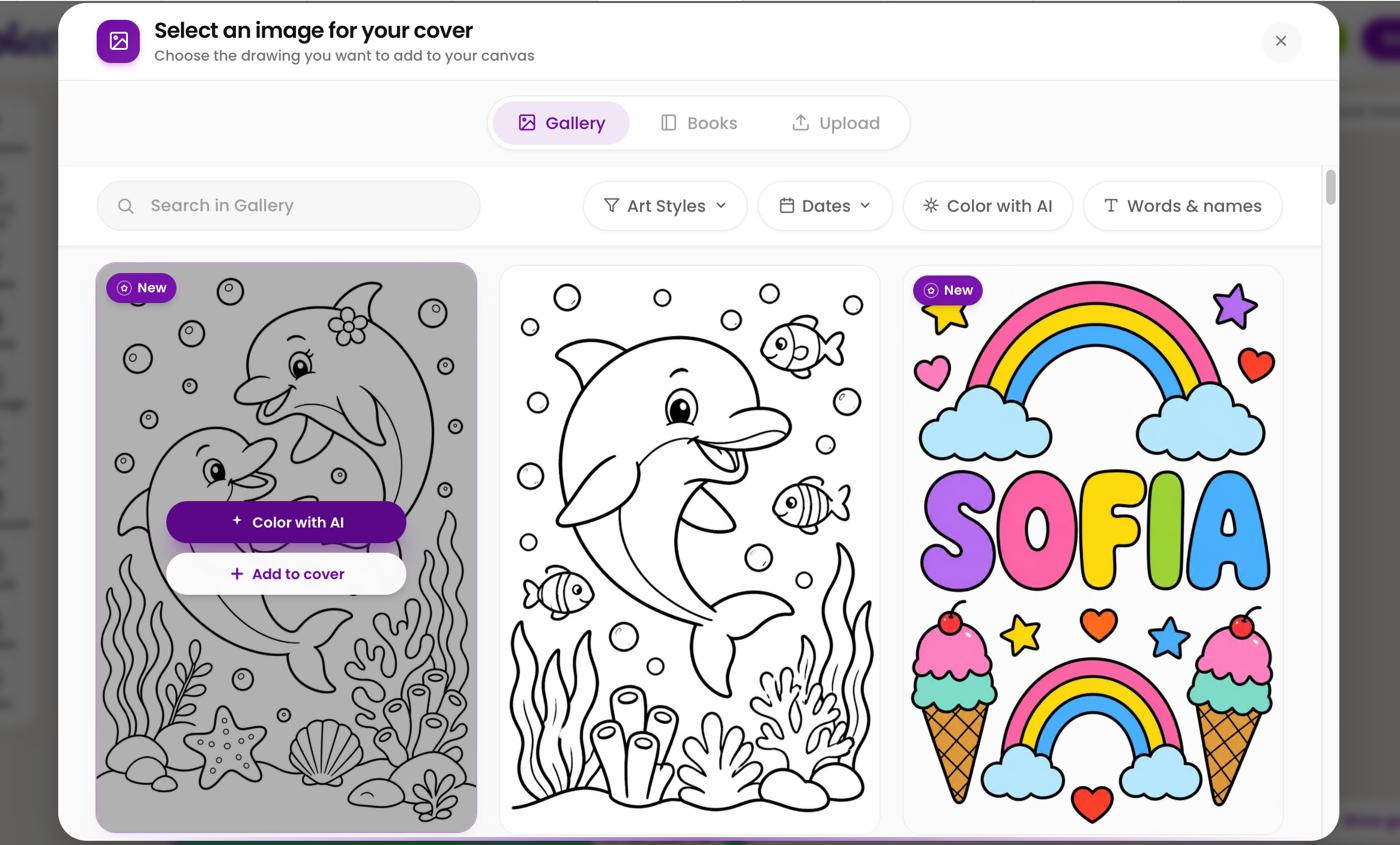
- Press Add to cover. To color the page first, press Color with AI and leave the title empty, since the template already has one.
Templates with the Page Filling the Front
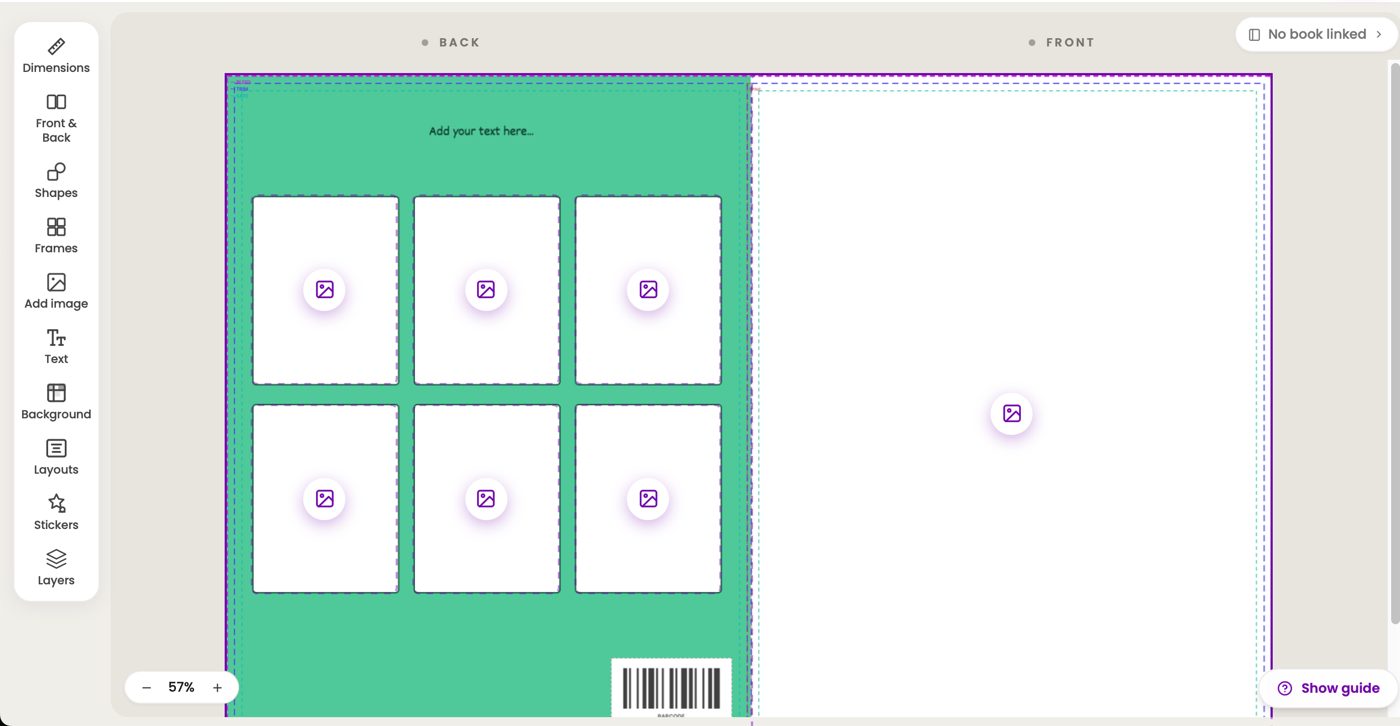
Mint Kids, Deep Forest, Winter Frost and Ink Anime have one large frame on the front and no title. The title goes inside your page when you color it:
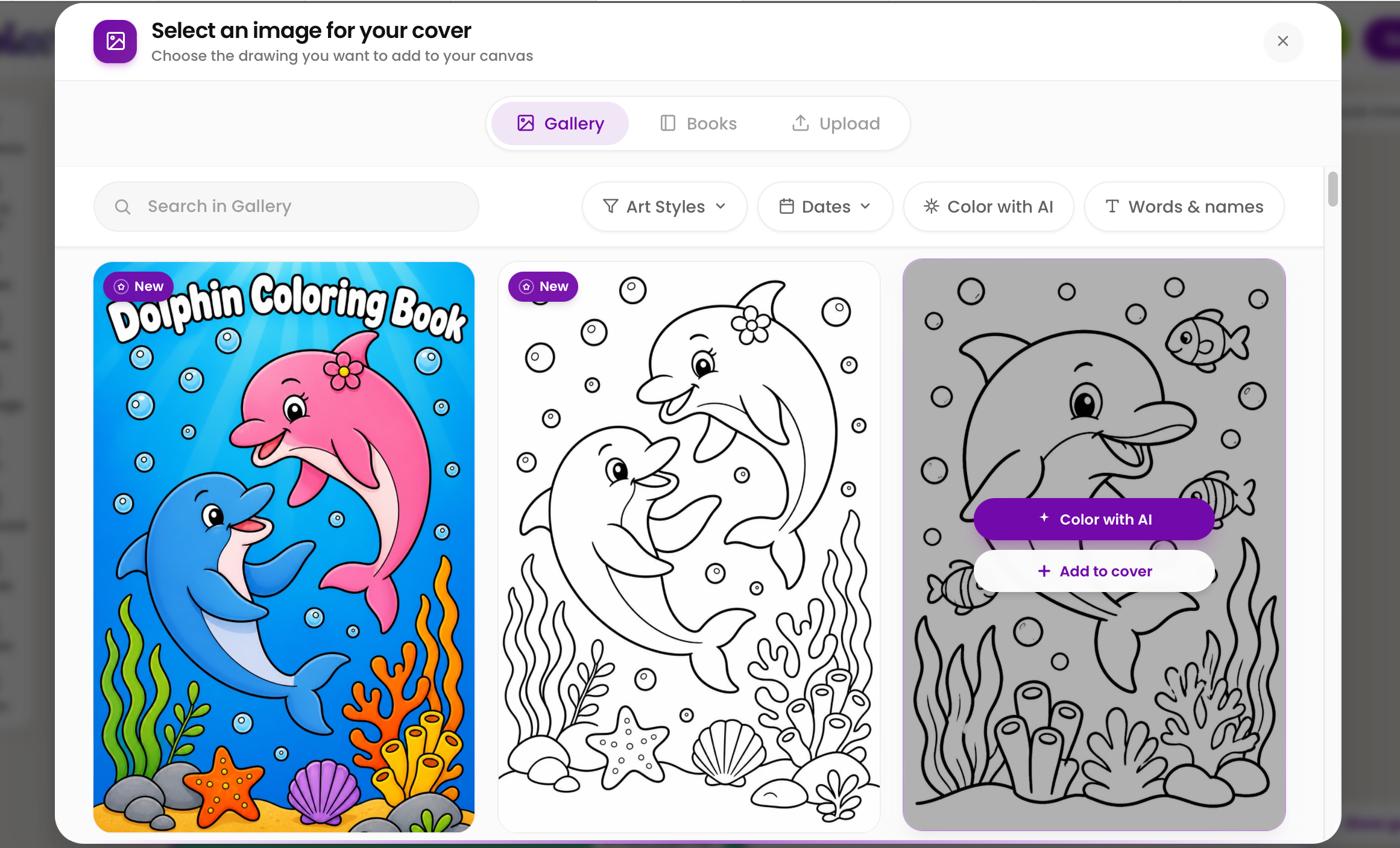
- Click the round picture button in the large frame and, over your page, press Color with AI.
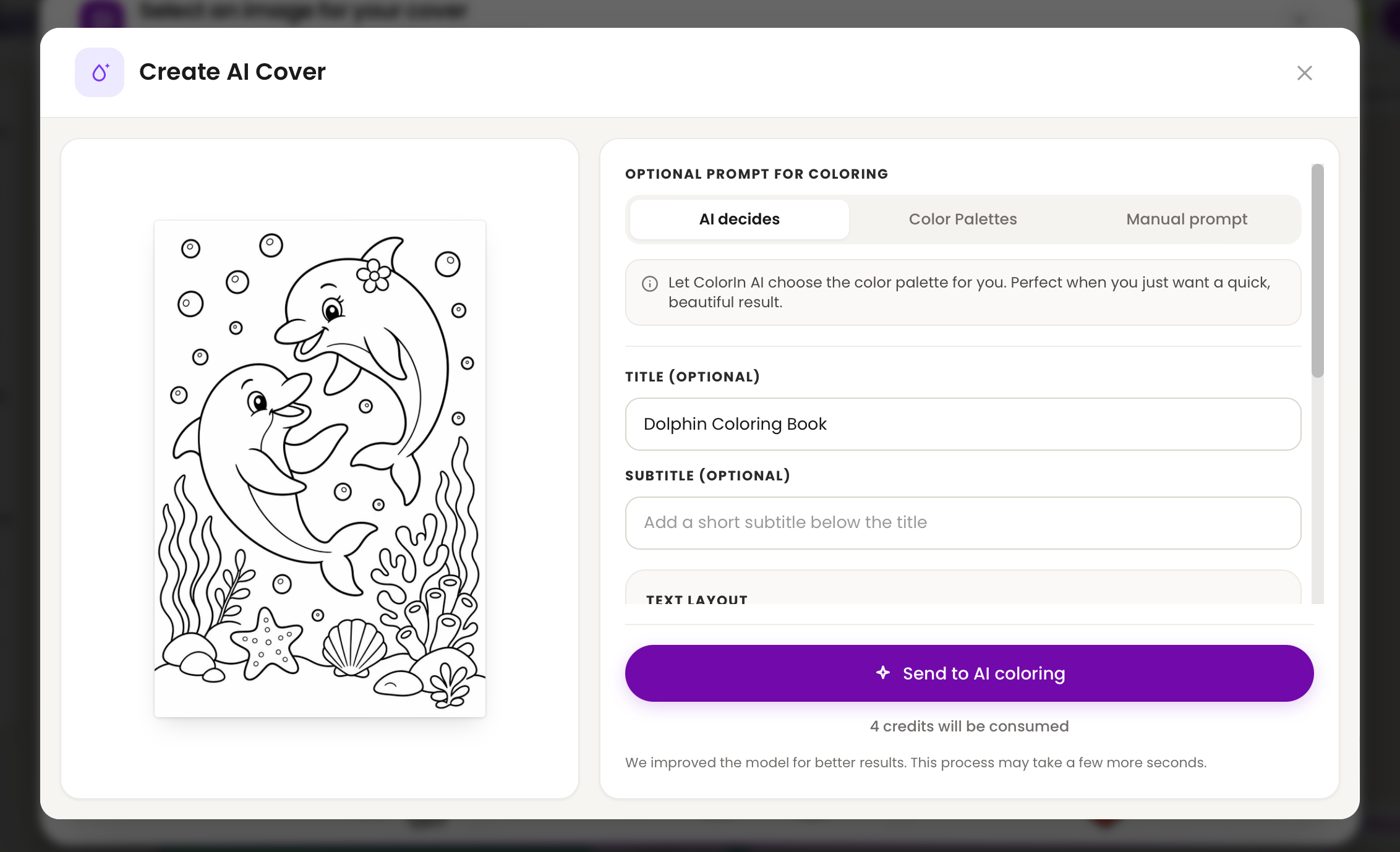
- In Create AI Cover, choose how to color it: AI decides, Color Palettes or Manual prompt.
- Type your book's title in Title and its subtitle in Subtitle, then pick the Text layout, Text style and Text color.
- Press Send to AI coloring. The colored page, with your title, appears first in the Gallery tab.
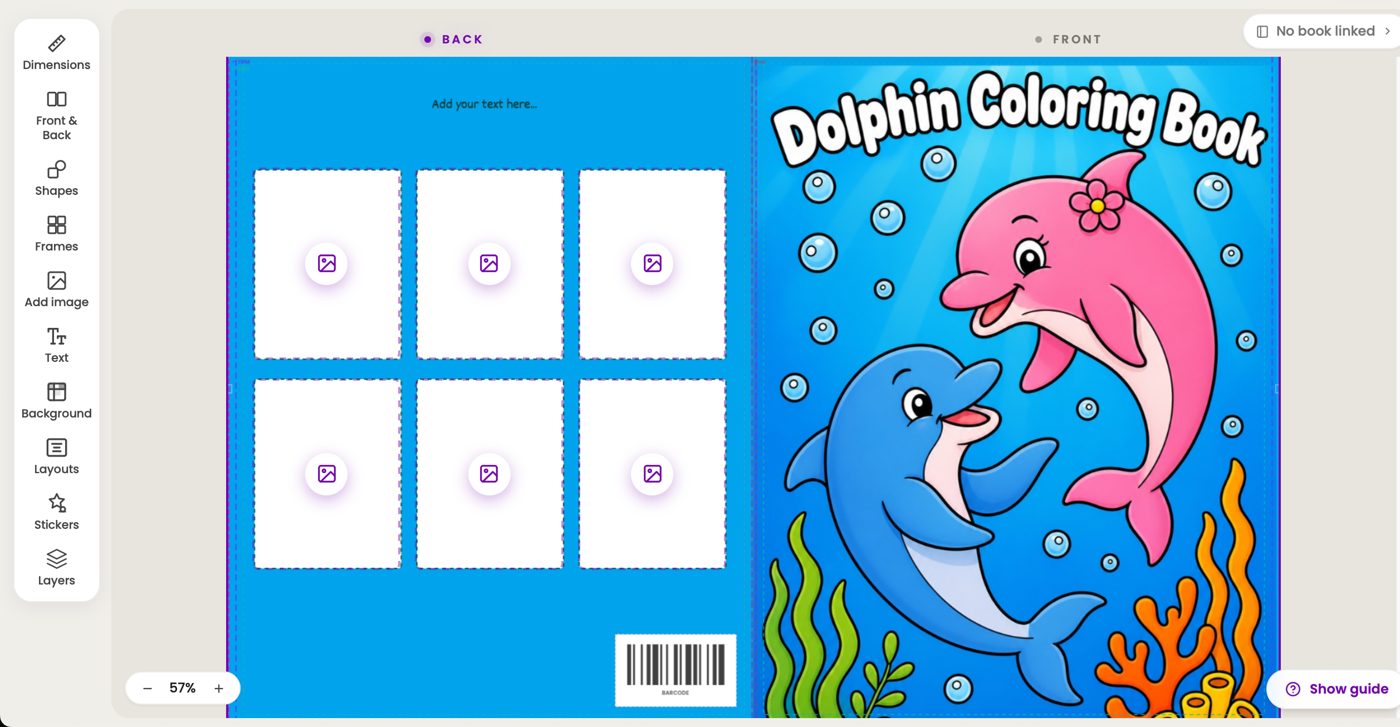
- Check the spelling and press Add to cover. The page fills the front, with the six frames of the back ready for your samples.
Fill the Back Cover
Add a few pages from your coloring book to the frames on the back, as samples. Choose the ones that look best, because the back helps sell the book. Then click the text at the top and write a short line about the book.
The sample barcode in the corner shows where a barcode goes, since Amazon KDP prints one there. It's only on screen, and it isn't in the file you download.
Make the Template Your Own
You can change every template to your taste. Open Background in the side menu to give the cover another color, a gradient or a pattern, on the whole cover or only on the front, the back or the spine.
Click the title and open Text to pick another font and color. Click a shape, like the box around the title, and open Shapes to change its color with Fill and Border. There you can add stars, arrows and other shapes too, and turn any of them the other way: press the three dots above the shape and choose Flip horizontal or Flip vertical.
Save and Download
Press Save, then the download button next to it. If it asks you to check the page count, confirm it or change it. Choose Document (PDF) to print or publish, or Image (JPG) to share the cover online or with a client.
The pages inside your book can have a frame too, as in the guide to adding a border to coloring pages.
Make your next coloring book and give it a cover from Layouts.
Colorin AI is an AI coloring page and coloring book generator built for creators who sell on Amazon KDP and Etsy, with generation from a written prompt or from a photo, character lock for consistency across pages, and print-ready export sized for KDP.
Written by Kisbel Blanco. Published September 30, 2026.