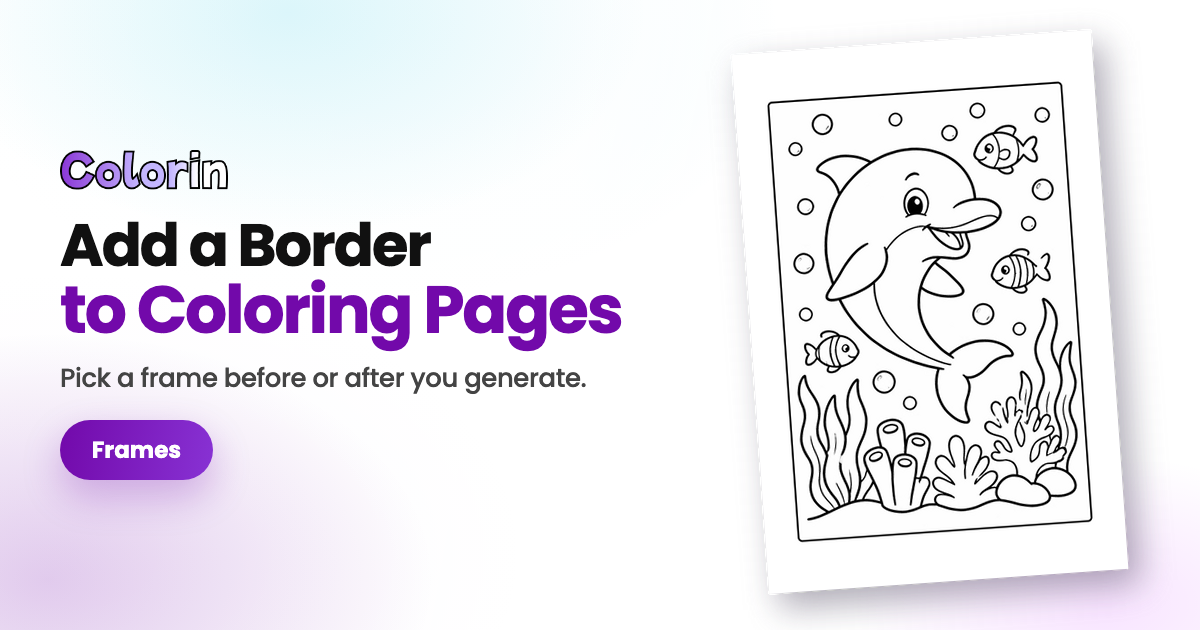
A frame puts a border around your coloring page, and Colorin AI has five to choose from.
How to Add a Frame to a New Coloring Page
In AI coloring page, write your idea as usual and choose your style and size. The Frame row is right under them. Click the frame you like and press Generate. Colorin AI makes your page with its border already on. None leaves the page without one.
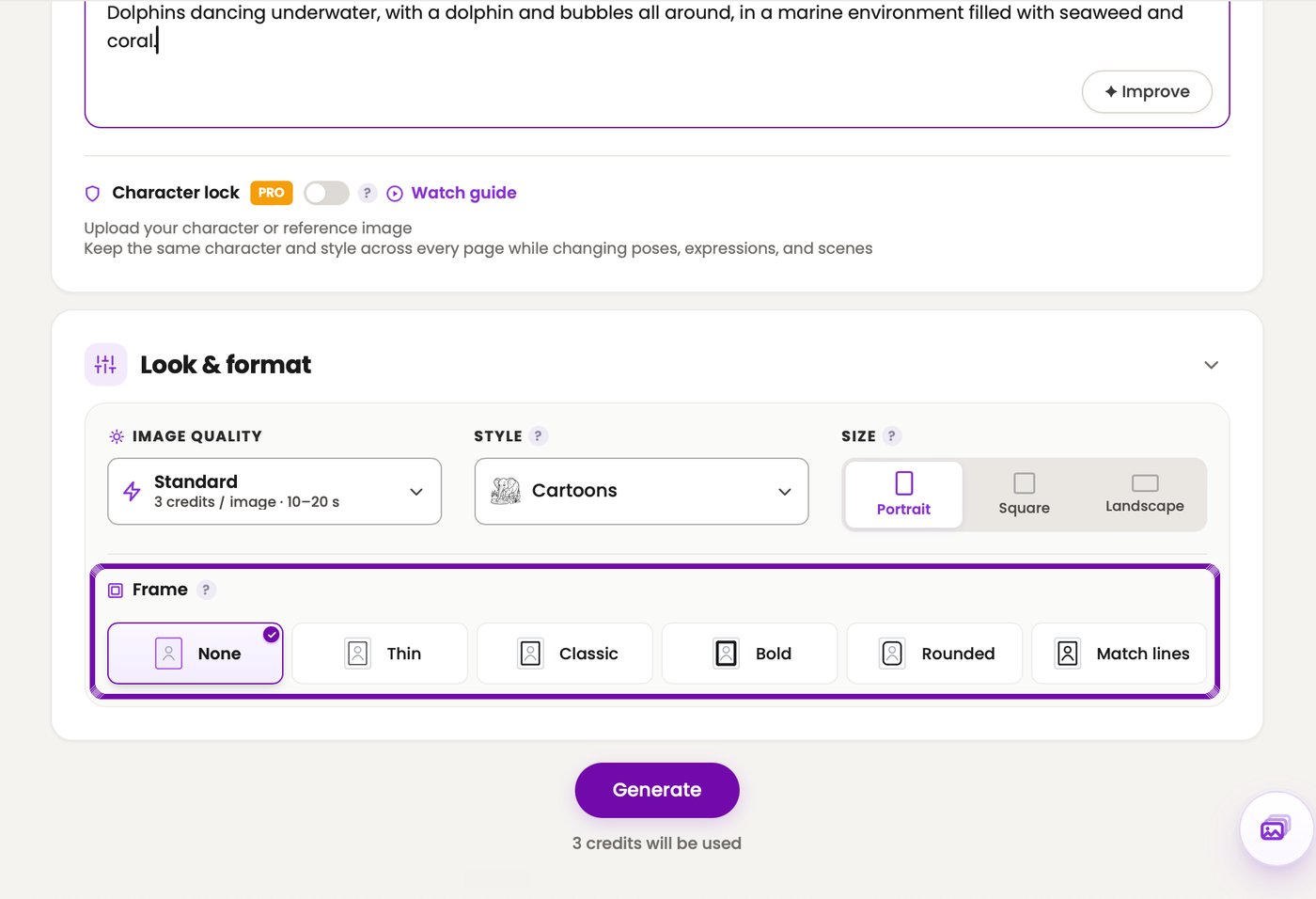
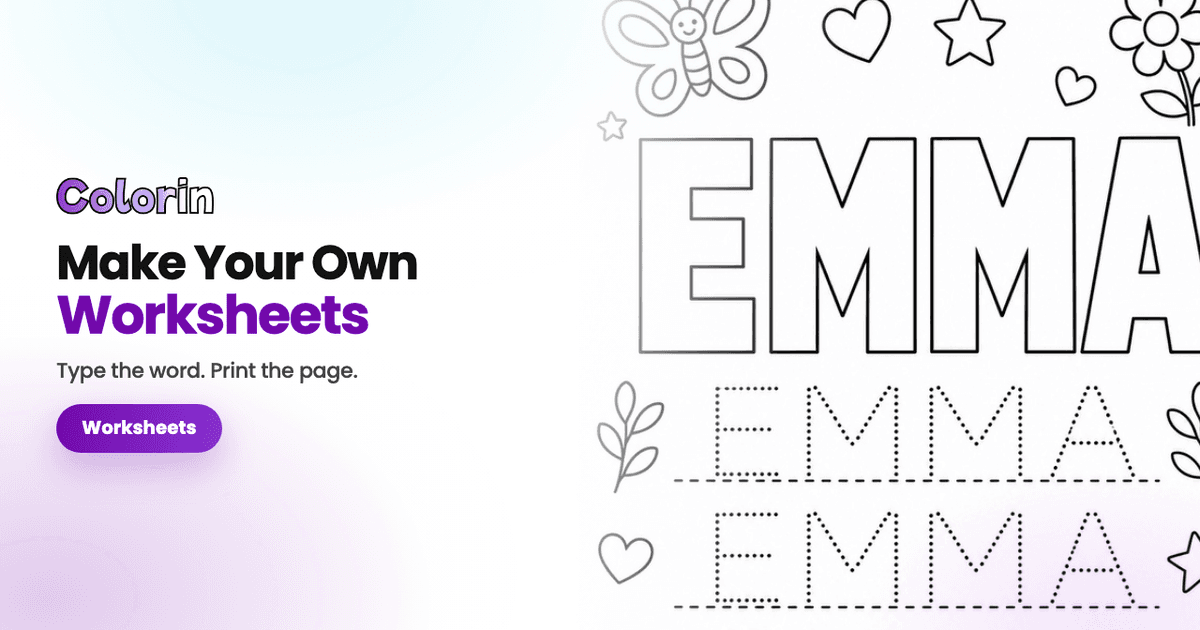
Photo to coloring page has the same row, just above its button. A page made from a photo can have a border too. So can a name: click Words & names, at the top of AI coloring page, and the row is there as well.
How to Add a Frame to a Page You Already Made
Open your Creations gallery and click the page you want to frame. The Frame section is next to the page. Click the one you like. Your page has it at once, with nothing else to press. To take the border off, click None in the same section.
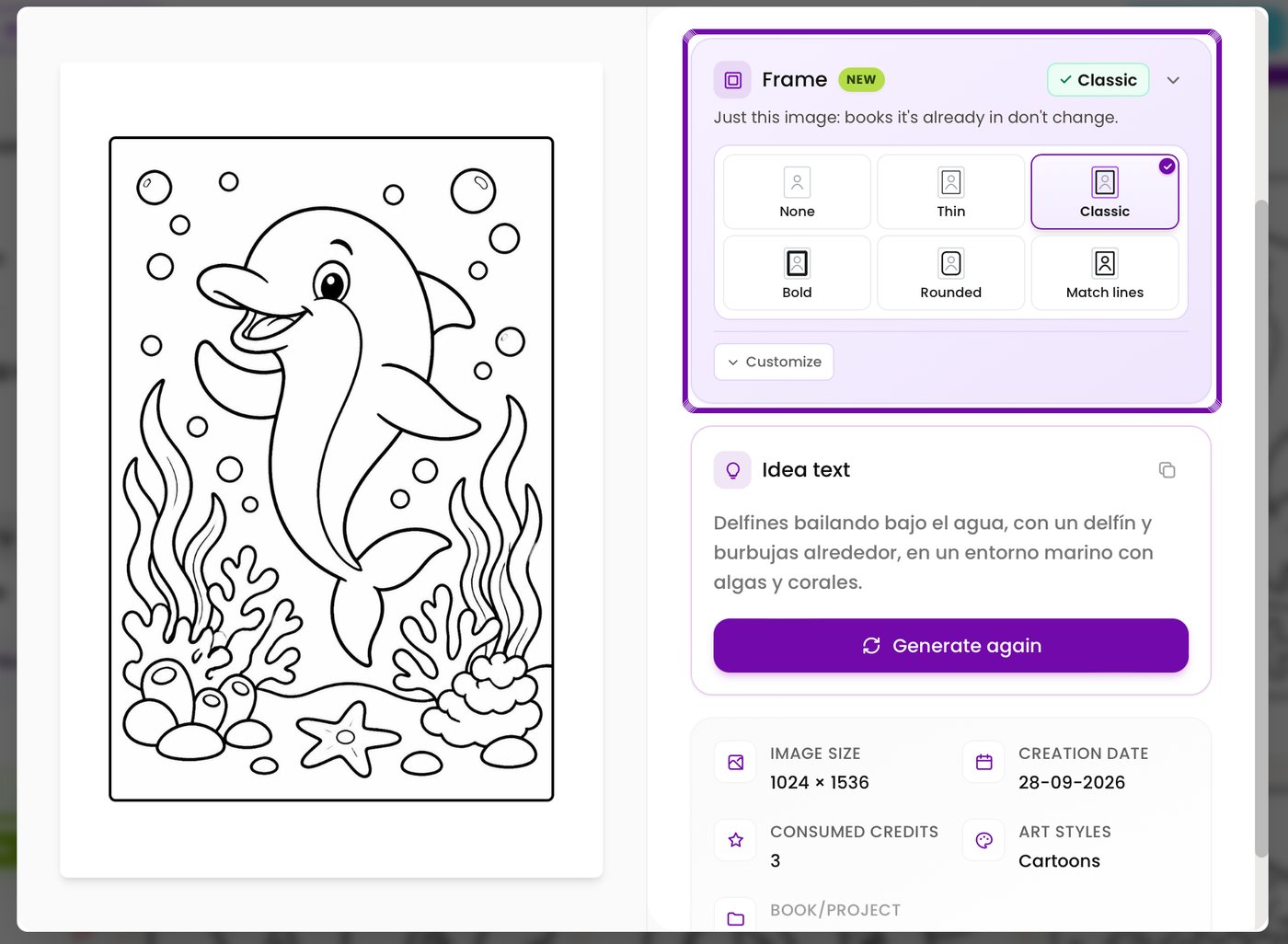
Only that image changes. If the same page is inside a coloring book, the book keeps its own border.
How to Put a Frame on Every Page of a Coloring Book
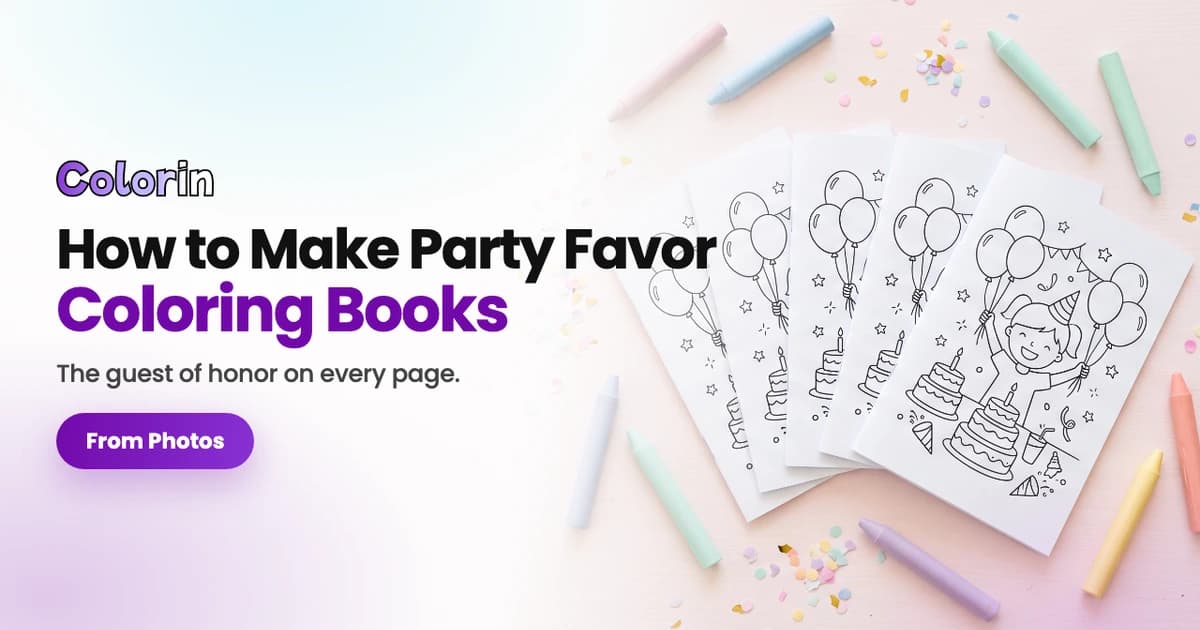
When you make a new book in AI coloring book, the row is called Frame on every page. It sits under the style and size, the same as for a single page. Pick a frame and press Generate Coloring Book. When the page ideas appear, press Looks Good. Every page of the book comes out framed.
For a book you already made, open it from Books & projects and open Page setup. Click the one you like in its Frame section. Every page of the book gets it, and so do the pages you add later.
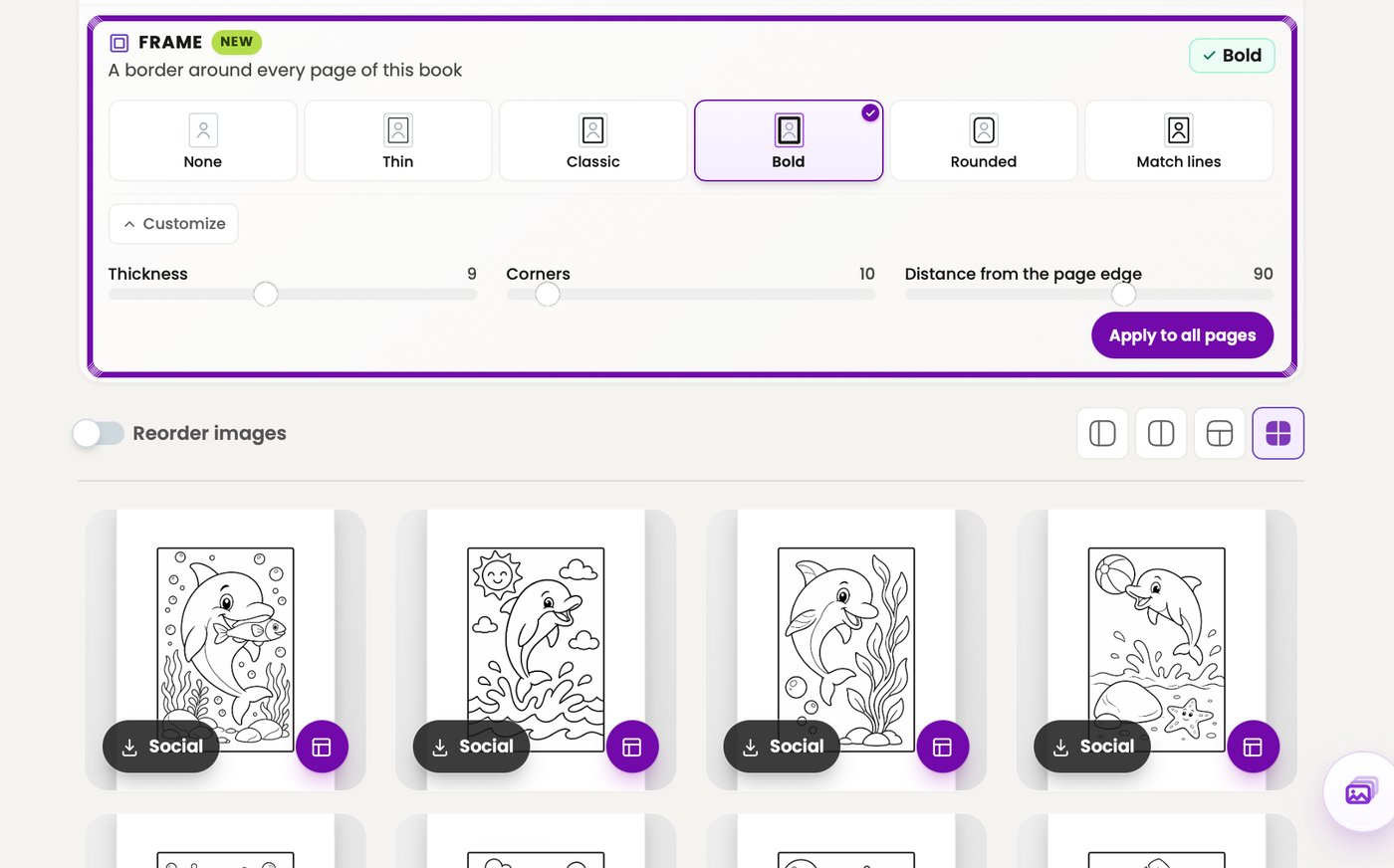
Do you want one page to look different? Press the round purple button at the bottom right of that page. Then pick a border under Frame for this page. If you change your mind, Match all, in the book's Frame section, puts the book's border back on every page.
The book's frame shows inside the book and in its PDF. In your gallery, the same pages still show without it.
Which Frame to Use
Each button in the Frame row shows a small picture of its border.

Thin is a fine line that doesn't compete with the drawing. It suits detailed designs, like mandalas and florals.

Classic is a medium line that fits most pages and books. If you're not sure, start with this one.
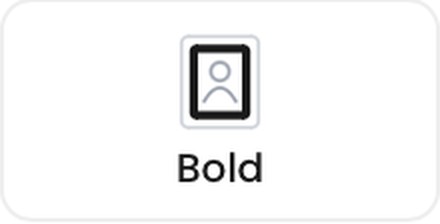
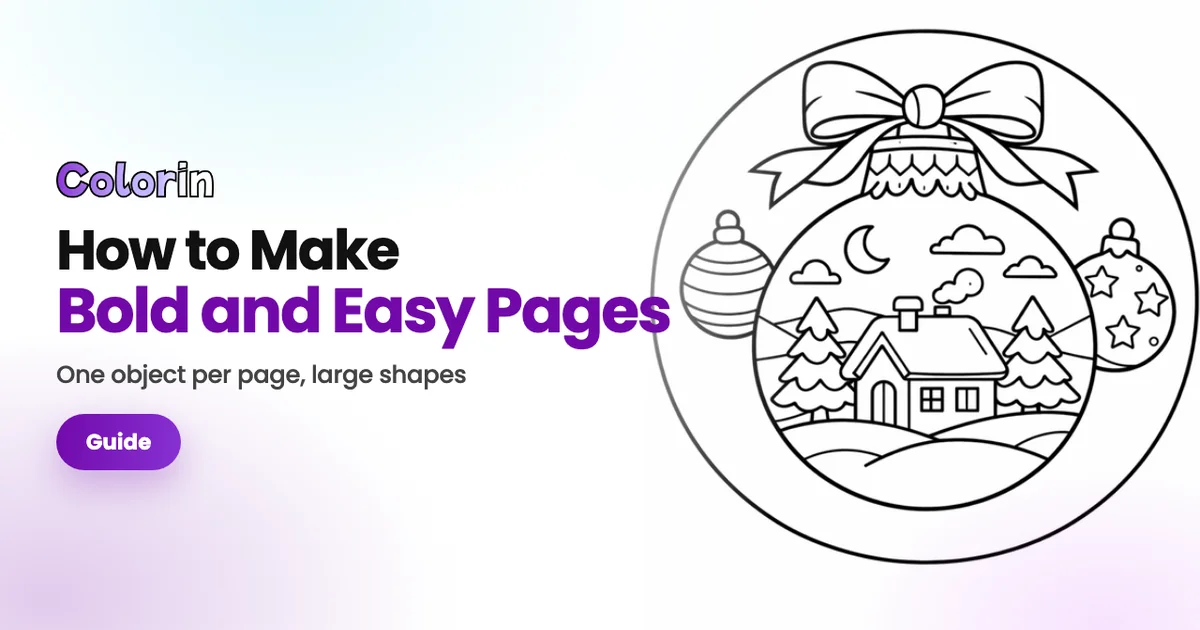
Bold is the thickest line. It's made for bold and easy pages and for books for young kids.

Rounded has soft, round corners. It looks good on cute animals and gentle pages.

Match lines copies the thickness of the drawing's own lines. The border looks drawn together with the page.
Do you want a thicker or thinner line, rounder corners, or the border closer to the edge of the page? Press Customize under the frames and move the sliders until it looks right. Then press Apply, or Apply to all pages in a book.
Print Your Framed Pages
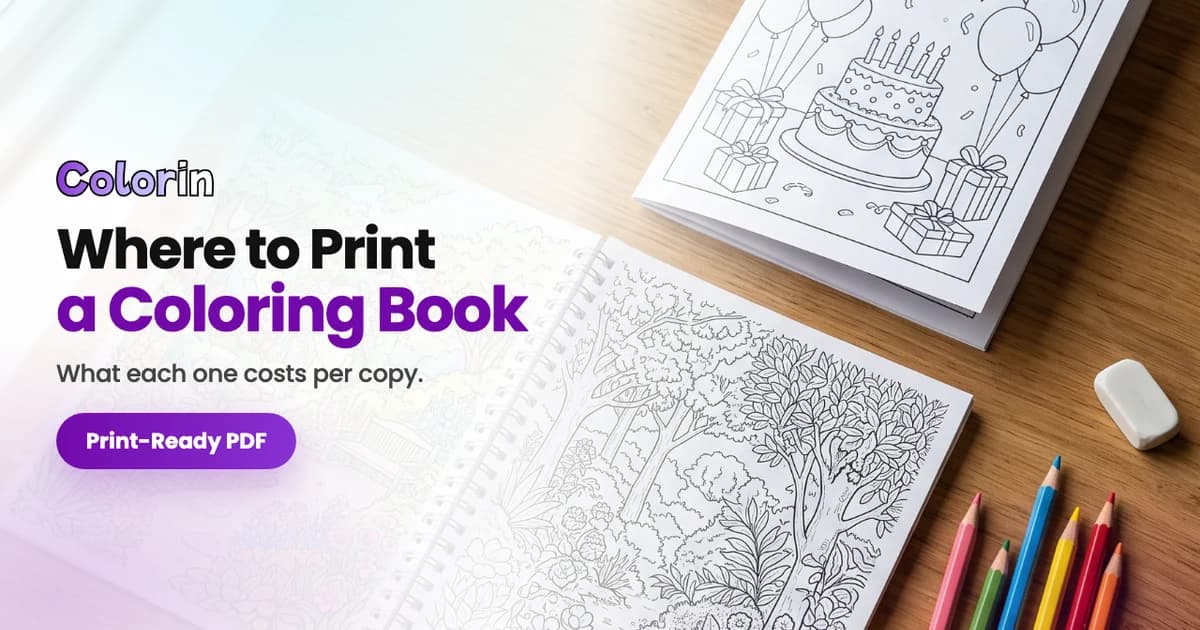
A framed page prints like any other coloring page, with its border around the drawing. The printer settings are in our guide to printing coloring pages at home. If your printer cuts off part of the border, move it further in with Customize. Before you print a whole book, print one page to check that the border fits your paper. In a coloring book made in Colorin AI, the frame is already in the book's PDF, the file you send to a print shop or to Amazon KDP.
For the cover, Cover creator has its own borders in Stickers, under Frames. You'll find how to give your book a finished cover in our guide to coloring book cover templates.
Create your framed coloring page.
Colorin AI is an AI coloring page and coloring book generator built for creators who sell on Amazon KDP and Etsy, with generation from a written prompt or from a photo, character lock for consistency across pages, and print-ready export sized for KDP.
Written by Kisbel Blanco. Published September 30, 2026.