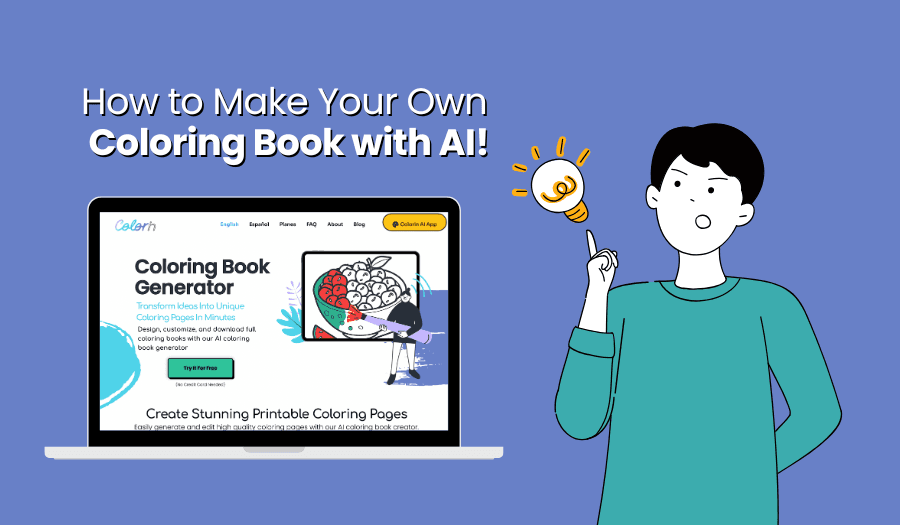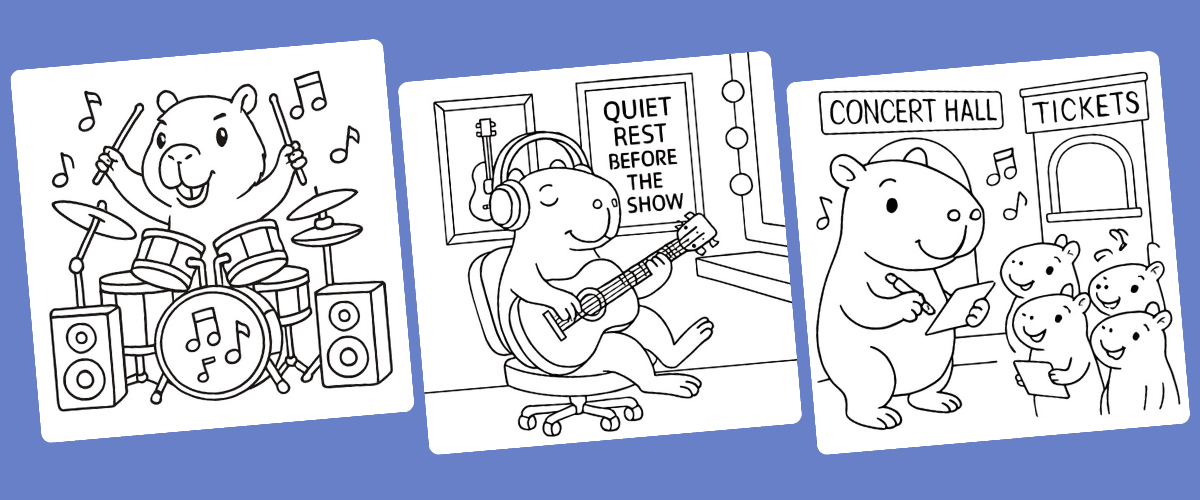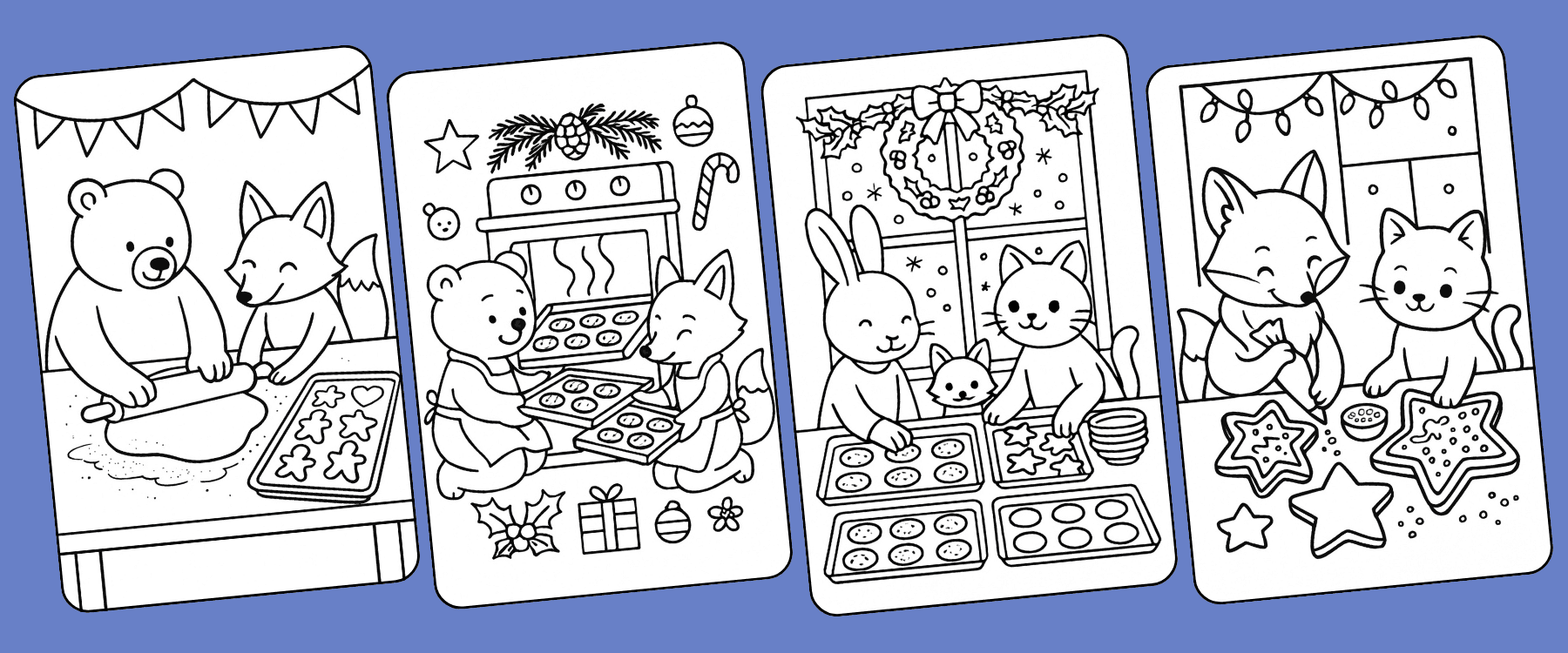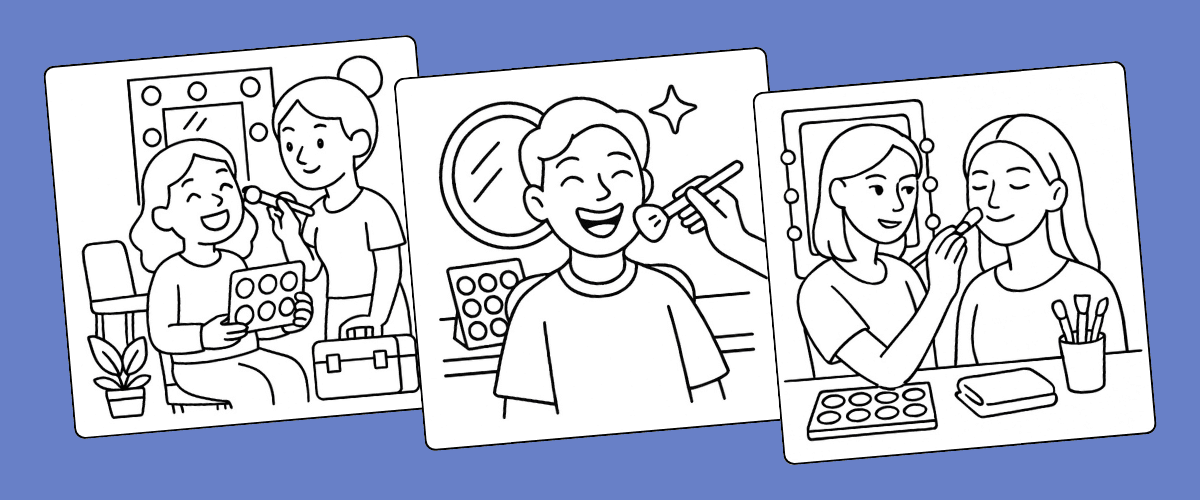
You do not need to draw to make a coloring page. You describe what you want in one sentence, pick a style and a size, and the generator draws the line art. Start to finish it takes about a minute.
This guide covers the version most people want first: a single page, made from a written prompt. Most of it is about the prompt, because that is the part that decides whether the page comes out clean or comes out as a tangle nobody wants to color.
What you need before you start
- A Colorin AI account. Signing up is free.
- Credits. Every generation spends some, and the exact cost appears on screen before you press Generate.
- An idea. One sentence is enough, and shorter is usually better.
Step 1. Write your prompt
In the left menu, open AI coloring page. That takes you to the Coloring Page Generator, and you want the Generate Coloring Pages tab, which is the one on the right.
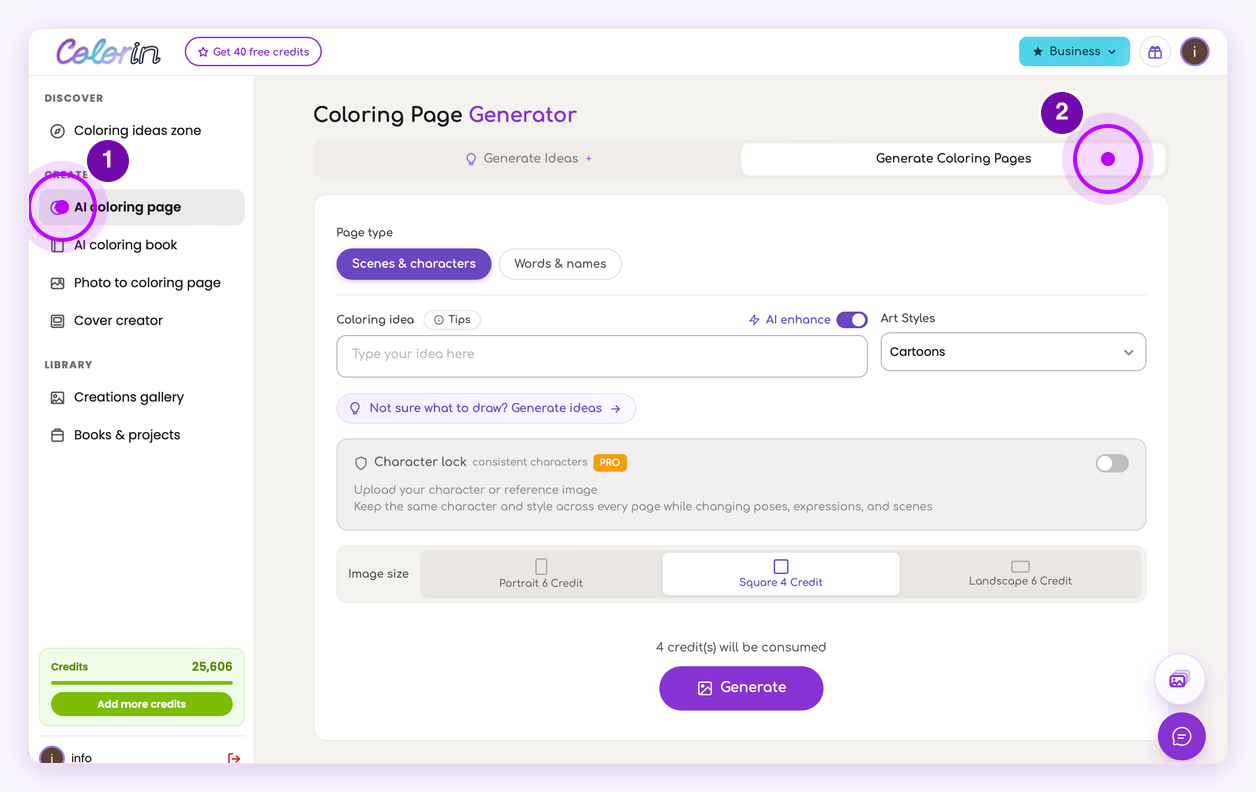
Under Page type, leave Scenes and characters selected. The other option, Words and names, turns a name or a letter into a page, which is a different job and a different guide.
That leaves the Coloring idea box, and that box is where the whole page comes from.
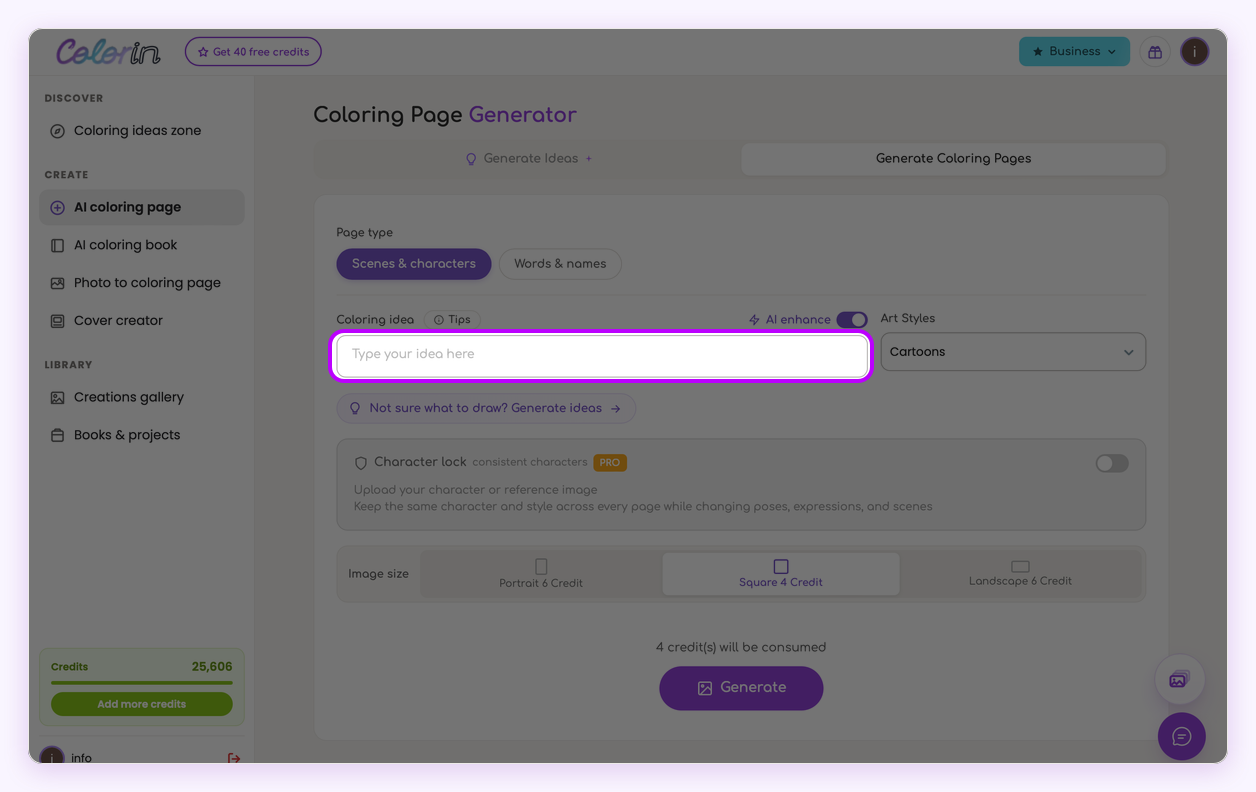
Write what you want to see. That is the whole rule, and there is no limit hiding behind it: a single sleeping cat and a busy castle courtyard at a summer fair are both perfectly good prompts. You name what should be visible, and the pose, the framing and the background are filled in for you before anything is drawn.
Ideas that are already a page
Six words are a finished coloring page. These went in exactly as written:
- a kitten sleeping in a teacup
- a girl eating ice cream on a beach towel
- a fox sitting beside a mushroom
- a grandmother baking bread
- three balloons above a roof
None of them mentions light, angle, or what fills the corners. Those come with the page. Here are three finished pages from our free gallery, each one a plain scene said in a handful of words:
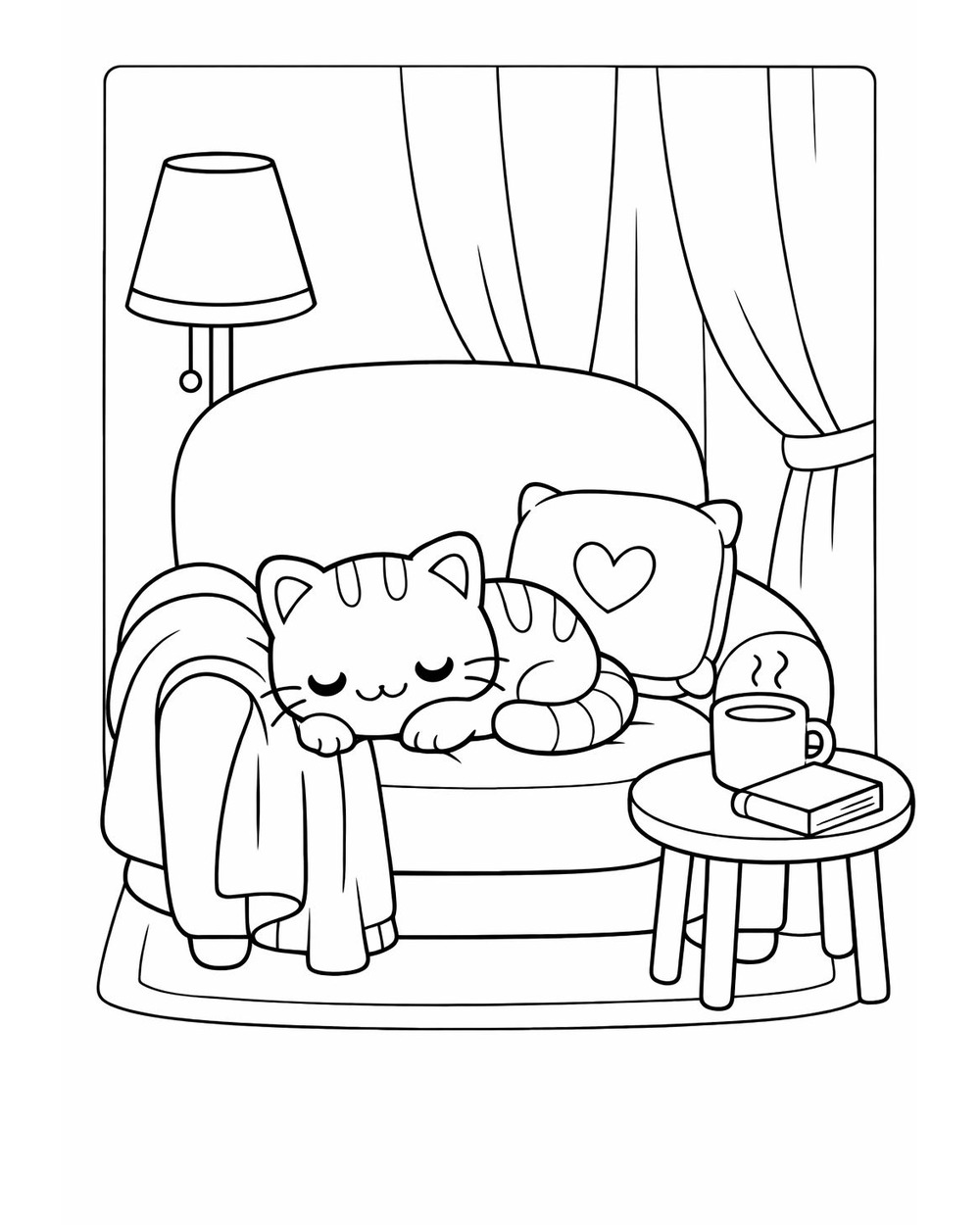 a kitten sleeping on a cozy armchair
|
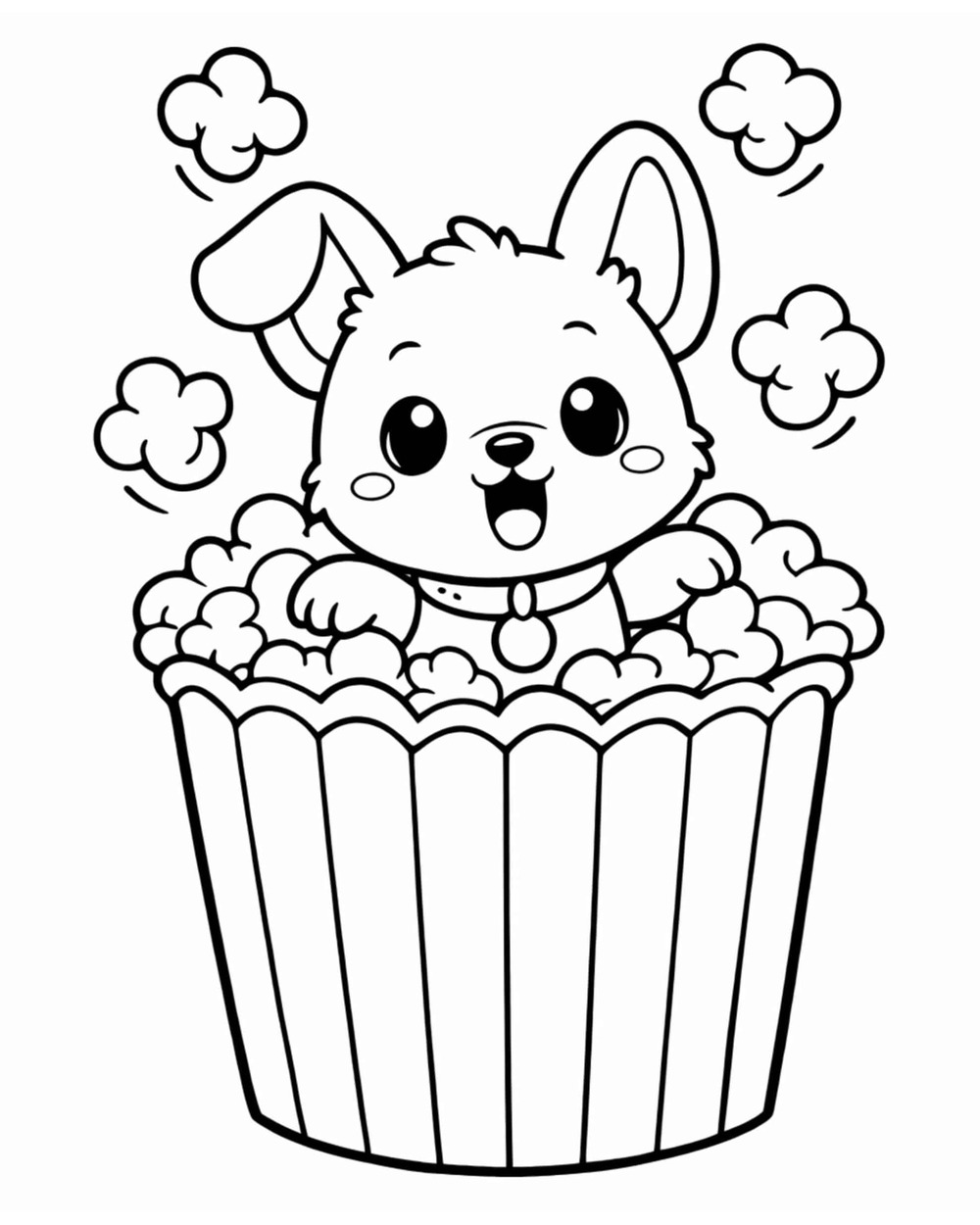 a puppy in a popcorn bucket
|
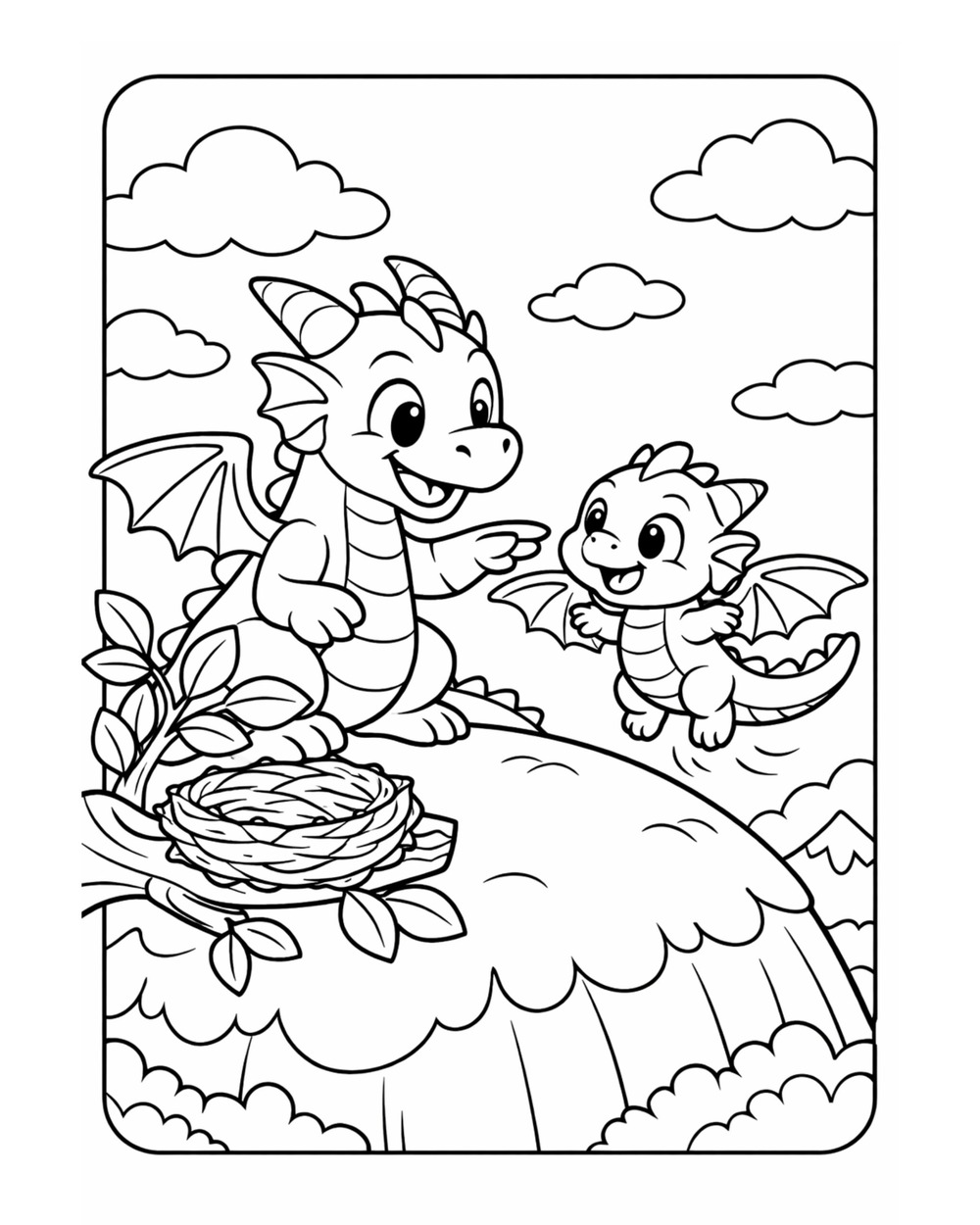 a baby dragon learning to fly
|
Be specific without crowding the page
People mean two different ideas by "more detail", and only one of them fills up the page.
Adding another object takes up room. A second animal, a castle, a river: each one is a new shape competing for the same paper.
Adding direction to what you already asked for costs nothing. The kitten is still one kitten whether or not you say it is asleep, whether or not the teacup sits on a lace doily. You are not filling the page, you are telling the generator what picture this is. Do this as much as you like.
Worth saying out loud:
- The emotion. A happy girl, a sleepy fox, a proud lion. The face is the first place anyone looks, and if you do not name the mood you get whatever the generator picks.
- The action. Jumping in a puddle, riding a bike, watering flowers. An action turns a portrait into a scene without adding a single new object.
- Where each object sits. On a windowsill, under a tree, in the center of the page.
- A frame or a border. Ask for one and you get one: a flower border around the edge, a rounded frame, a scalloped edge. Borders are a quick way to make a page feel finished.
- Words on the page. Give the exact phrase you want and it comes back as outlined letters, ready to color like everything else.
Compare these two:
Plain: a girl
Directed: a happy girl jumping in a puddle, with a flower border around the page
Both are one girl. The second one is not busier, it is decided. Nothing was left for the generator to guess at.
One exception on words: if the page is mostly the word, with the picture wrapped around it, that is what the Words and names page type at the top is for.
How much to put in
As much as you want, but match it to whoever is going to color the page.
A coloring page is black outlines on white paper, and every element you add makes every shape a little smaller. For a four year old with a fat crayon that matters: a kitten in a teacup gives big areas and forgiving edges. For an adult with fineliners it is the opposite, and an enchanted forest with fairies, a castle and a river is exactly the point, because the detail is what they are paying for.
The question is never how much the generator can handle: it is who is holding the pencil.
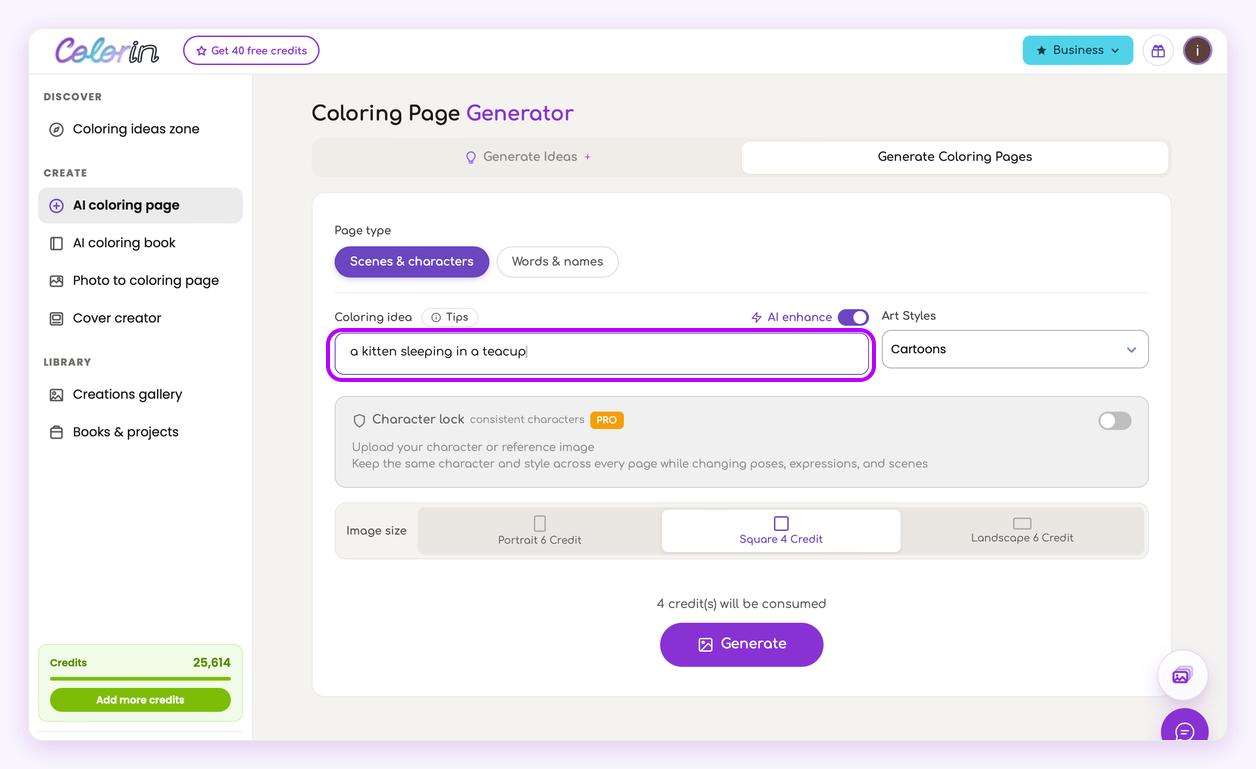
The AI enhance switch
On the same row as the Coloring idea label, over on the right, there is a switch called AI enhance, and it is on by default.
Leave it on and it rewrites your prompt before anything gets drawn, filling in the parts you did not spell out. It does not replace your idea. A kitten sleeping in a teacup comes back as a kitten sleeping in a teacup, just with the pose, the setting and the framing decided for you instead of left open. That is why six words are enough to get a finished page.
So leave it on. It is what makes a short sentence enough, and it is why you do not have to learn to write prompts to get a page you like. Turn it off only if you want your words followed to the letter, with nothing added, which is worth doing once you have a phrasing you like and want to repeat it across a set.
If you cannot think of anything
While the idea box is empty there is a link under it that reads "Not sure what to draw? Generate ideas". It takes you to the Generate Ideas tab, where you type a theme instead of a prompt and get back a list of page ideas built around it. Each one has a Use button that drops it into the idea box for you.
It is faster than staring at an empty field, and it is the quickest way to see what a well-formed prompt looks like.
Step 2. Pick a style and a size
Art Styles sits to the right of the idea box. Image size sits below it.
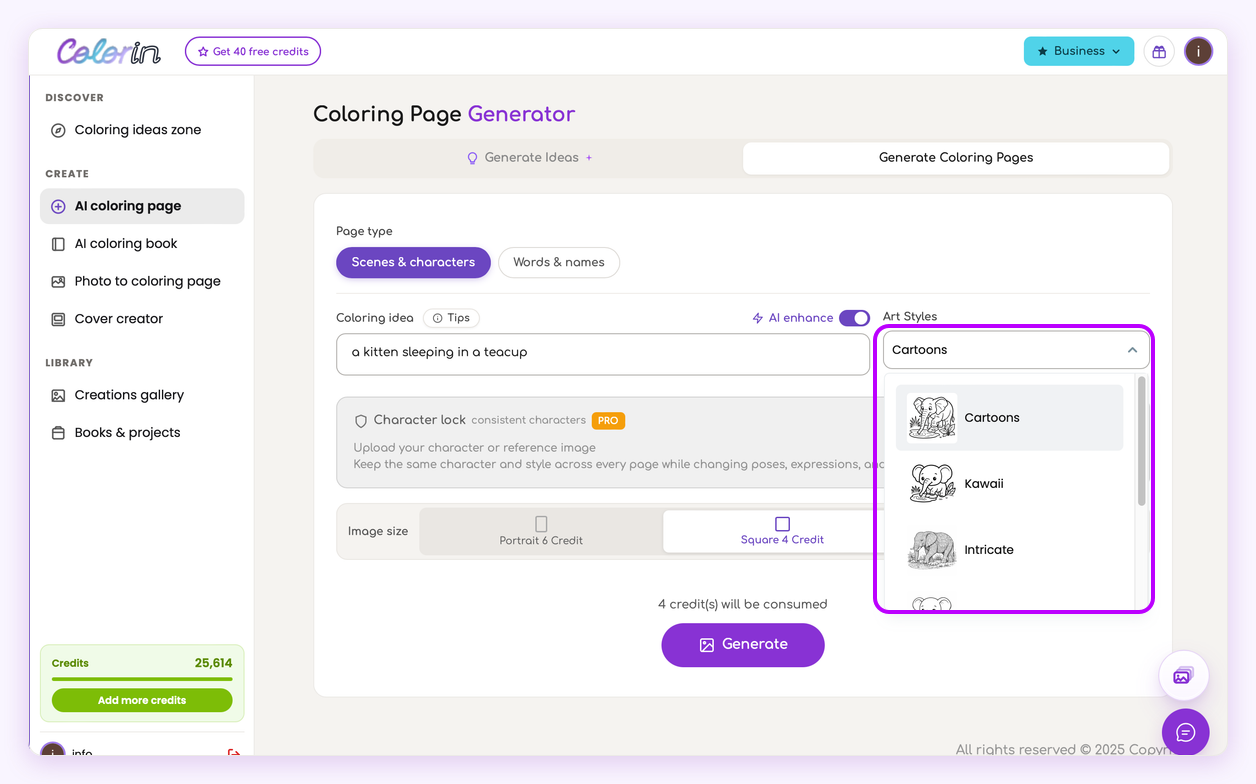
Style is the art style, the way the drawing itself is done. Cartoons, Kawaii, Intricate and the rest are different looks, not different line weights: the outlines stay the same thickness across all of them, which is what keeps every page printable and colorable. What changes is the drawing.
Open the list and each option shows the same elephant drawn in that style, so you choose by looking rather than by guessing.
Size controls the proportions. Portrait matches a sheet of letter or A4 paper, so pick it for anything you plan to print. Square works for stickers and social posts. Landscape works for wide scenes and two-page spreads.
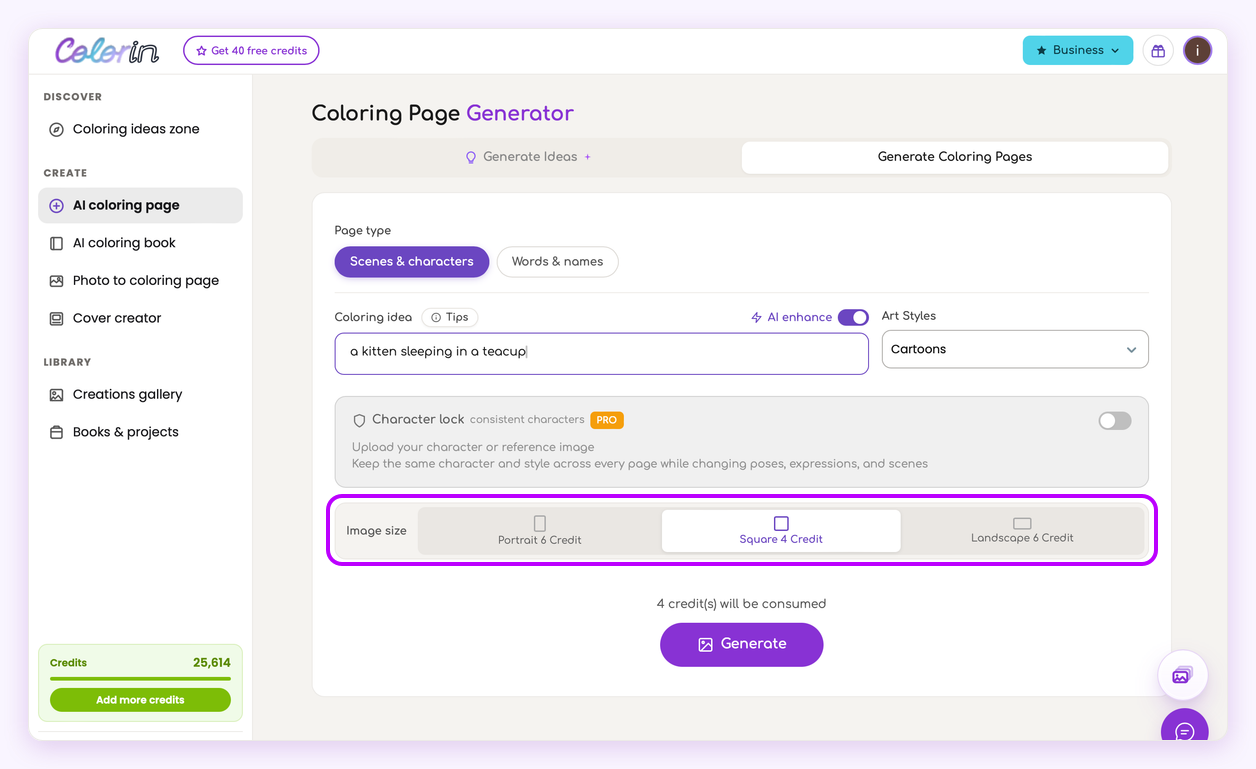
The total for this generation appears just above the Generate button, so the cost is on the screen before you press it.
Step 3. Generate
Press Generate. Each run produces one page, so what comes back is a single drawing rather than a grid of options to choose from.
It usually takes under a minute and can take up to two. You do not have to sit and watch. When it finishes you land in your gallery with the new page already open.
Running the same idea again
Getting one page per run does not mean one attempt per idea. Open any page from your gallery and the panel beside it shows Idea text, the prompt that produced it, with a Copy Idea button and a Generate again button underneath.
Generate again reruns that same prompt and gives you another take on it. Press it as many times as you like. Because the same words go in each time, the pages come back as siblings rather than as unrelated drawings, which is what you want when the idea was right and the execution was not: a different pose, a different angle, the same scene.
This is also how you recover a prompt weeks later. Copy Idea puts it on your clipboard, ready to paste back into the generator and edit into something new.
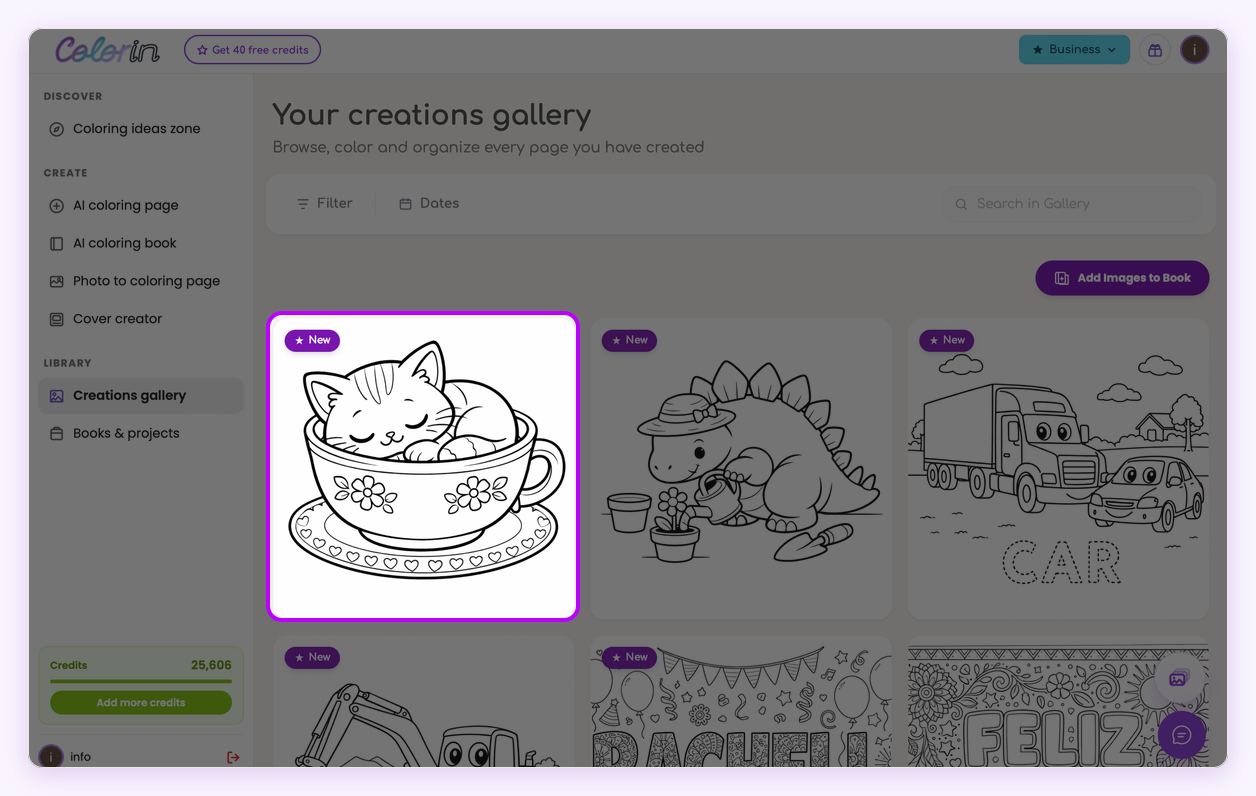
A generation that does not complete is not charged to you, and pressing Generate again is the whole of it.
What to do with the page
From the gallery, each page carries its own set of actions:
- Edit it by hand. The editor has a brush, a pencil and text, and none of them cost credits. Draw a line in, take one out, write a name on it.
- Or let the AI redo one spot. Paint over the part you want changed with Fix area, say what goes there, and only that piece is drawn again.
- Color it. The AI can color the page for you, either from a palette or from your own description.
- Add it to a book. Pages can be collected into a book, ordered, and exported together as a PDF.
- Download it. JPG, PNG or PDF, whichever suits where the page is going.
Two settings outside the generator decide how a finished page comes out of your printer, and the test sheet that catches them is in the guide on how to print coloring pages.
That is the whole loop: one sentence in, one page out, about a minute. Write your first idea and make the page, then come back for the part below, which is how to steer the next one closer to what you pictured.
How to get the page you pictured
If the first page is not the one you had in mind, you are one word or one style away from the next one, and it takes about a minute.
- Say the part you had only pictured. Smiling, jumping, on a windowsill. One word is usually the whole difference.
- Switch the style instead. The same idea in another style is a different page, and picking from the list is faster than rewriting anything.
- Ask for less if you want bigger shapes. Fewer elements means more room for each one, which is what makes a page comfortable for small hands.
Press Generate again and the sentence you used is already there waiting, so none of this asks you to start over.
Once the first page comes out the way you wanted, the rest of the book is the same move repeated.
Where a page becomes a book
One page and forty pages are the same move, made once or made together, and the whole book is four steps.
- Open the book generator and name the book. It is the tab beside the page generator, and the name is what the file carries afterward.
- Write your page ideas, one per line. A line each: a fox beside a mushroom, a fox in a boat, a fox asleep in a hat. They are all drawn together in the same style, which is what makes a stack of pages read as a book instead of a folder.
- Add a character if the book has one. Upload or create it once with character lock and the same face turns up page after page while the pose, the gesture and the scene change.
- Export and cover it. The finished book downloads as one PDF in Amazon KDP's page sizes with the print margins already applied, and a cover you link to it takes its size and page count from the book itself.
If the book is the point from the start, and especially if it is built around one person or one pet, our guide on how to make a personalized coloring book starts from the photo and runs to the finished PDF.
Frequently asked questions
Do I need to know how to draw?
No. You describe the picture in words and the generator draws it. Nothing in the process requires drawing, though the editor lets you draw on top of a page if you want to.
Do I need to install anything?
No. The generator runs in a browser, on a phone or on a computer, and the finished page downloads as a file you can print or keep. There is nothing to install and nothing to set up first.
Can I sell the coloring pages I make?
Yes. The commercial license is yours, with no royalty split and no attribution required. What is safe to build a book on, and what each marketplace asks you to declare, is in the guide on selling AI generated coloring pages.
How many coloring pages can I make at once?
Each run of the page generator produces one page, but you can rerun the same idea as often as you like: open the page in your gallery and press Generate again. If you need many different pages in one go, that is the book generator, which takes a list of prompts and works through them as a batch while you do something else.
What makes a good coloring page prompt?
A plain sentence naming what can be drawn, then as much direction as you want on top: the emotion, the action, where each object sits. Direction costs no space; extra objects are the ones to weigh. The prompts behind our own eight sets are picked apart in the guide on what a coloring page prompt should say.
Can I turn a photo into a coloring page instead?
Yes, that is a separate tool. You upload a photo and it comes back as line art, which is the better route when you want a specific pet, house or person rather than a generic one.
Why did my page come out too detailed to color?
Usually because the page has more in it than the person coloring it needs. Drop an element or two, and try a less intricate art style. Detail that reads beautifully on a screen gets hard to color once it is printed and a small child tries to stay inside the lines.